¶ AWS QuickSight User Guide
¶ New User Setup:
1. Contact the Software Development Team via the following methods to request an AWS QuickSight account:
a. Email SoftwareDevelopment@libertymar.com
b. Create a help desk ticket by emailing HelpDesk@libertymar.com
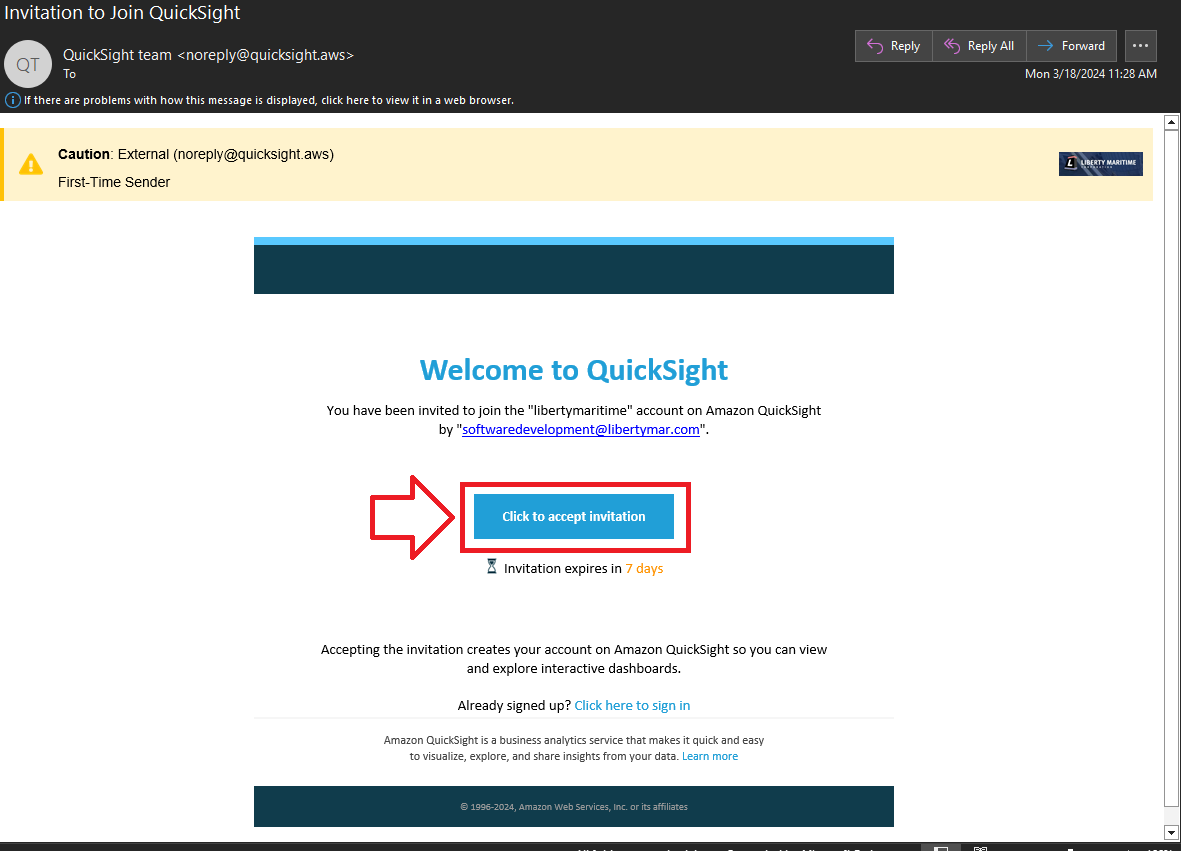
2. Once the Software Development Team has processed your request, an email will be sent to you from the AWS QuickSight team noreply@quicksight.aws with subject, “Invitation to Join QuickSight”. Click on the blue button, “Click to accept invitation”.
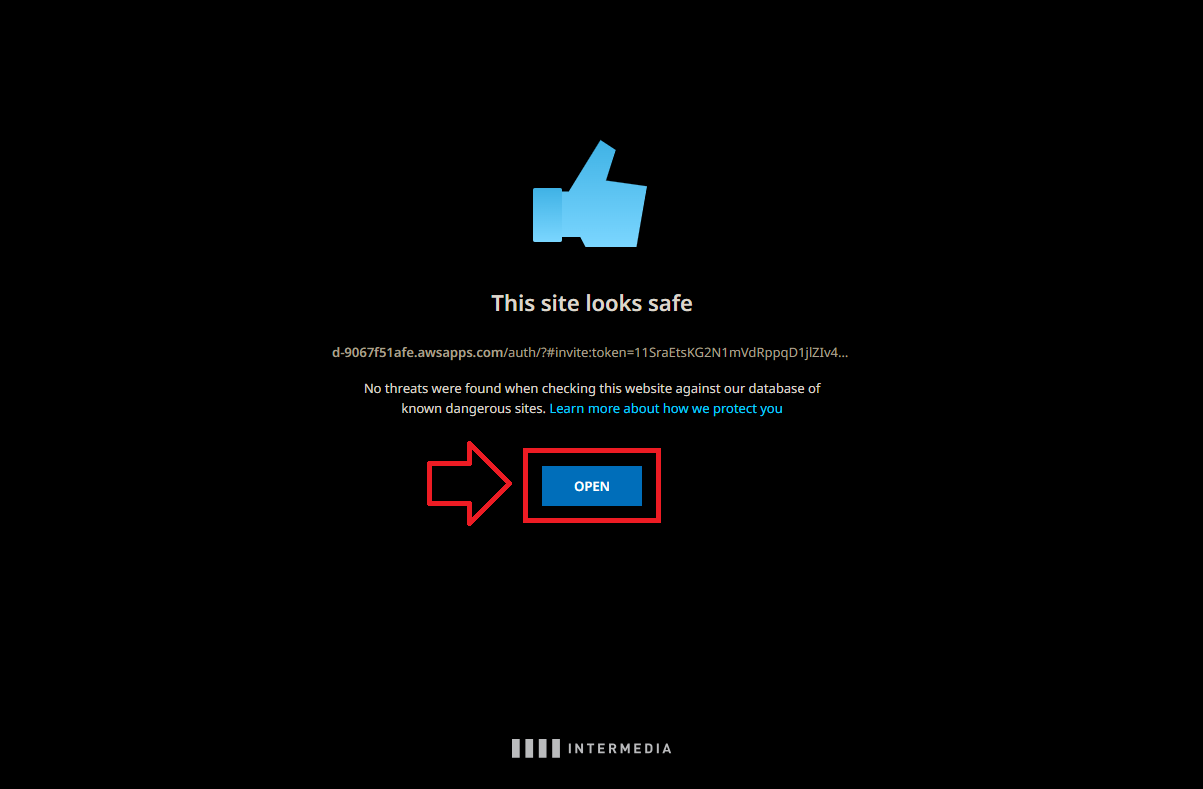
Intermedia may scan the URL after you click it, but should inform you that the site looks safe and provides a blue button to proceed with visiting the website. Please click “Open” if so.
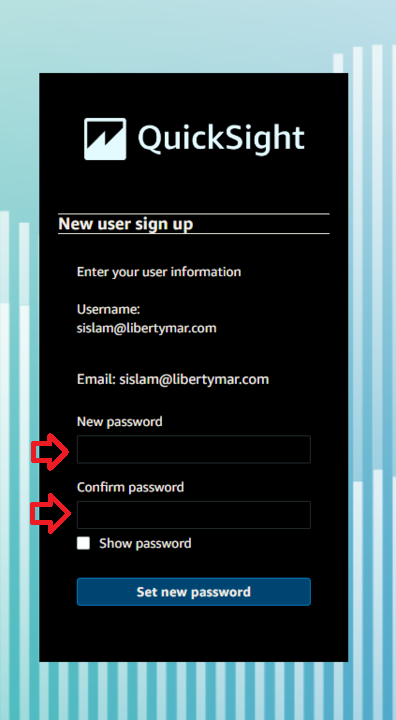
3. After accepting the invitation, you will be prompted to input a new password for the account. *Make sure you store this password somewhere safe!*
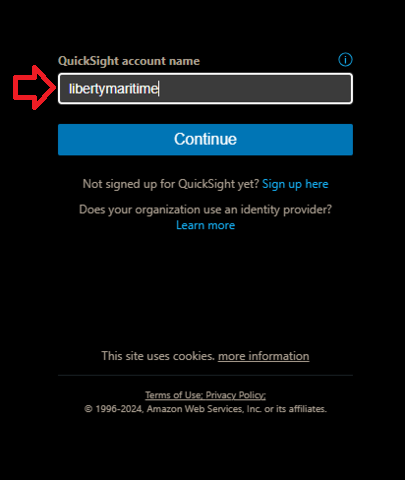
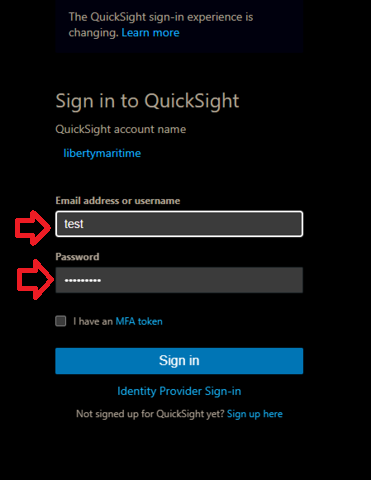
4. After setting up your password, you will be brought to a new sign in page that will ask for the QuickSight account name, please enter ‘libertymaritime’.
5. Next, you will be brought to the main AWS QuickSight page. Please enter your username (first initial followed by last name, no spaces, all lowercase) & newly created password. Ensure that the checkbox – “I have an MFA token” remains unchecked! Then press the blue button “Sign in”.
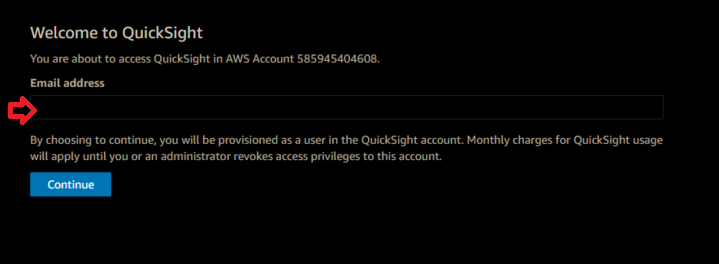
6. Finally, you must enter the email address at which you received the invitation link. Input into the field & press the blue button ‘Continue’.
7. Now you should have full access to view all available AWS QuickSight Dashboards! Press the ‘Dashboards’ button on the left side to view the different types that are currently accessible.

If at any point you experience any difficulties while creating your AWS QuickSight account or have any other questions, please contact the Software Development Team or IT Help Desk as noted in step 1, and we will assist ASAP.