¶ Booking User Guide
¶ Introduction
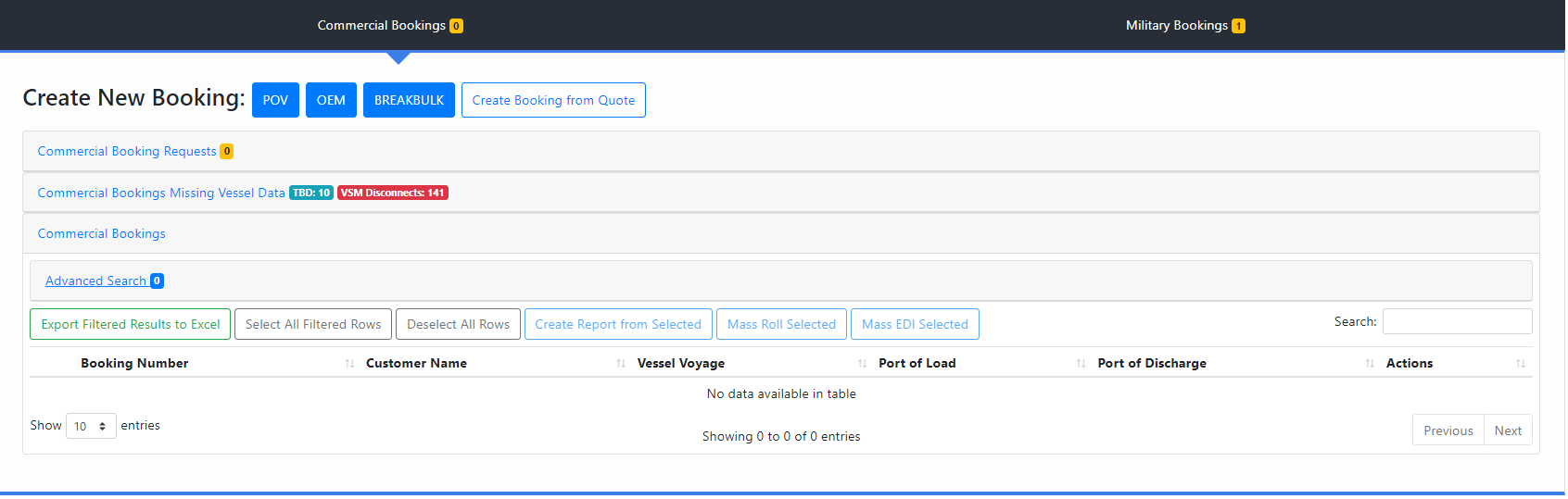
All Bookings will be created in this Module. The page is split up into two different pages: Commercial Bookings and Military Bookings. Both pages will look identical but will only display information relating to that type of booking. Each of these pages will contain a section for incoming Booking Requests (through EDI 300 files) and a section to view and find previously created bookings.
¶ Booking Request Tab
The Booking Request tab will be where all outstanding EDI 300 transaction will appear. This tab will be badged with a yellow number that will show the number of currently open booking request that the team will need to look into. Clicking on the words “Commercial Booking Request” in the bar will make the list of booking requests appear.
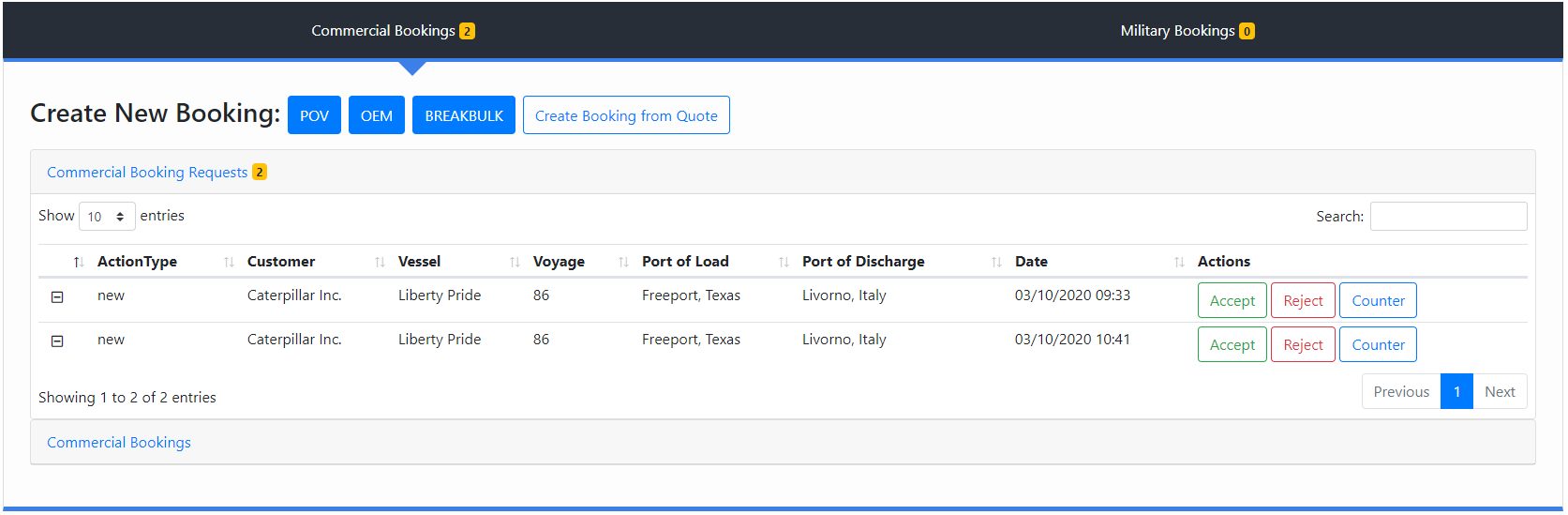
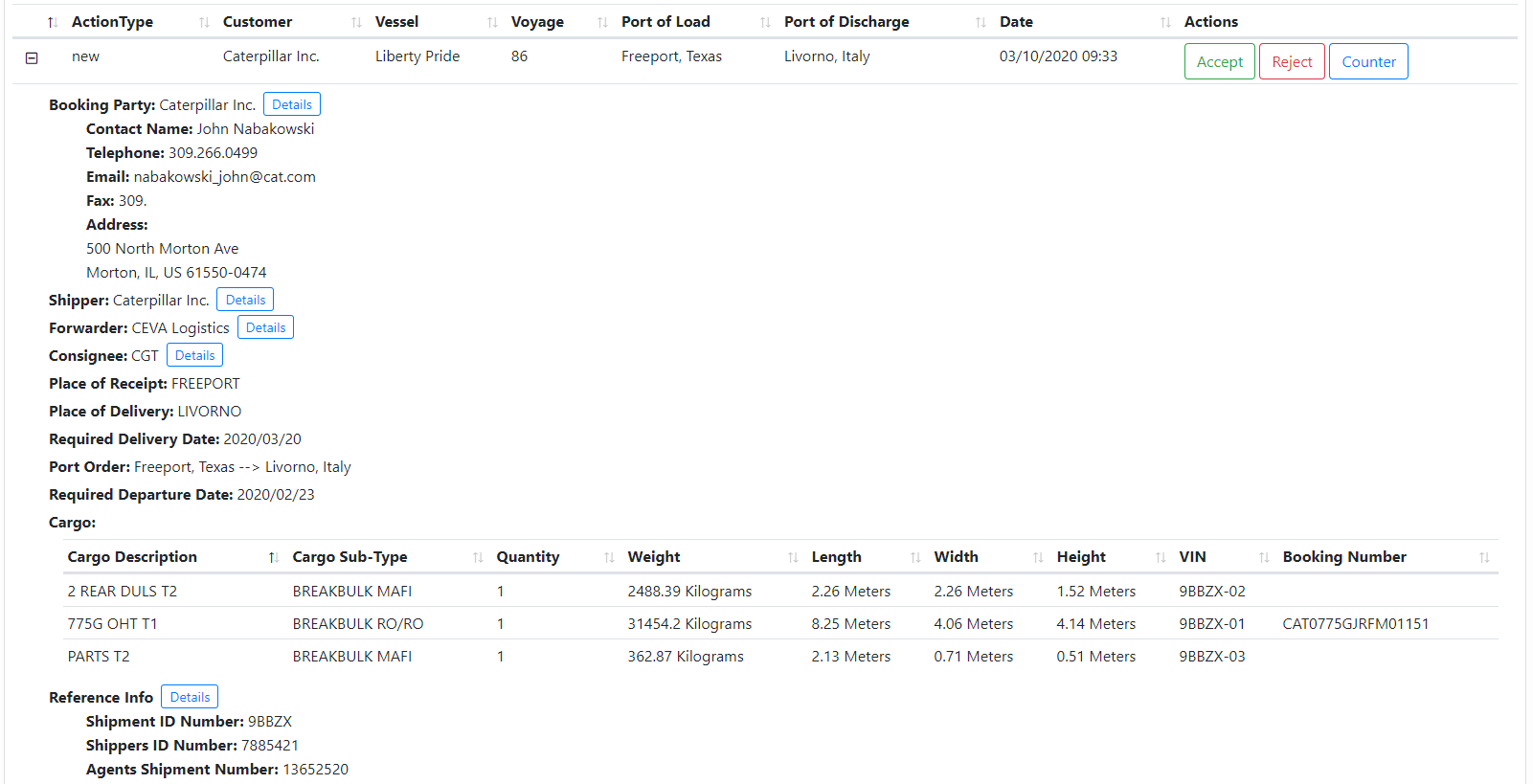
Clicking on the expand button in the left-most column, will open the booking request details that come in through EDI. The user will then be able to click on the Accept, Reject or Counter buttons and perform the specific action. Each of these buttons will bring up a popup that will contain different information that the user will need to input. The system will then auto generate a 301 EDI file to send back to the correct customer.
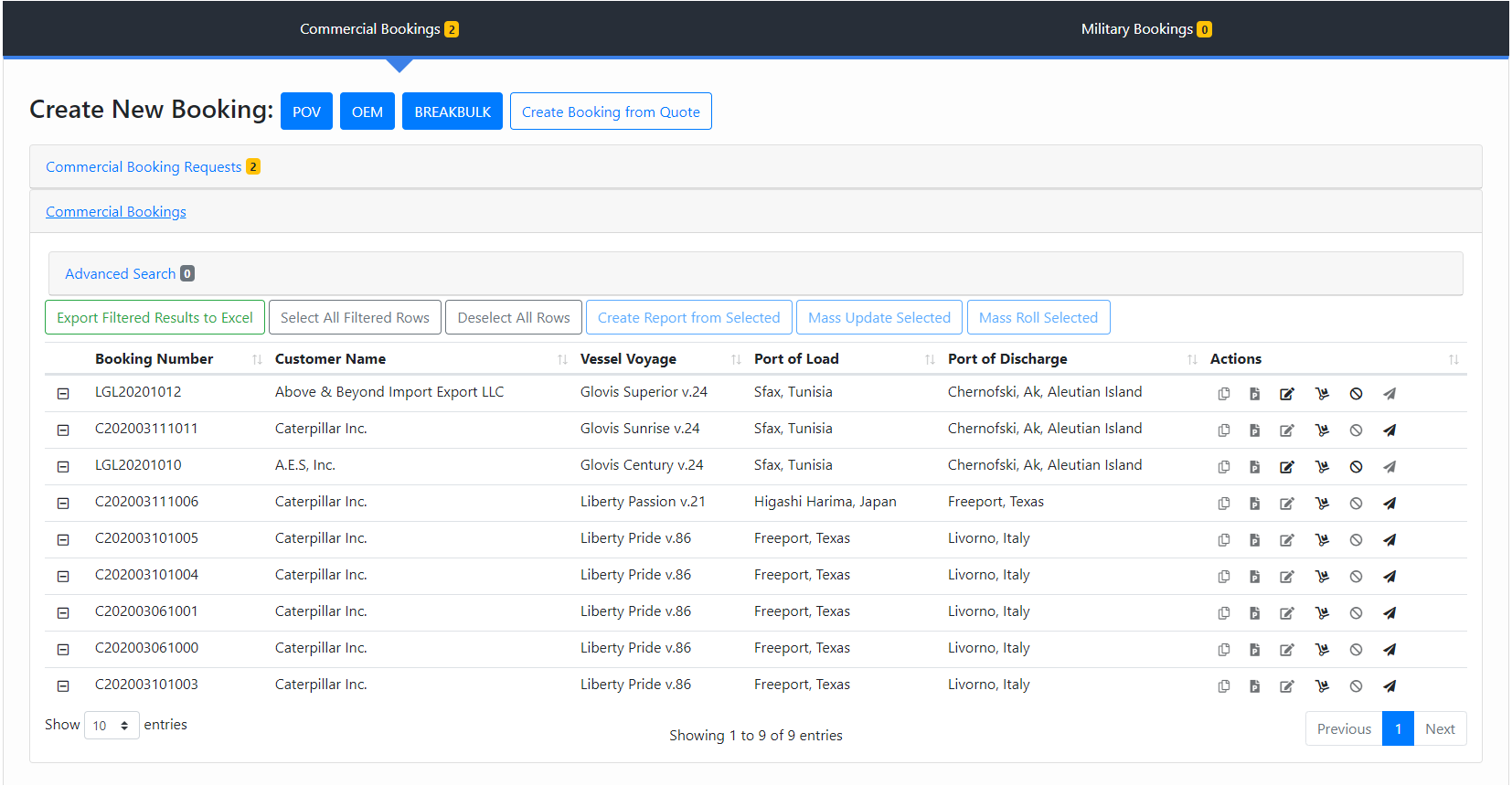
Once a booking request has been Accepted or Countered a booking will be created for this request and will then appear in the Bookings Tab.
¶ Bookings Tab
The bookings tab will contain all of the created bookings and allow the user to perform actions, search, filter and create reports from the list of bookings. The user will be able to perform specific Actions based on the type of booking and the customer. The full list of actions available are (from left to right): Copy Booking, Preview Booking Note, Edit Booking, Roll Booking, Void Booking, and Send EDI Transaction.
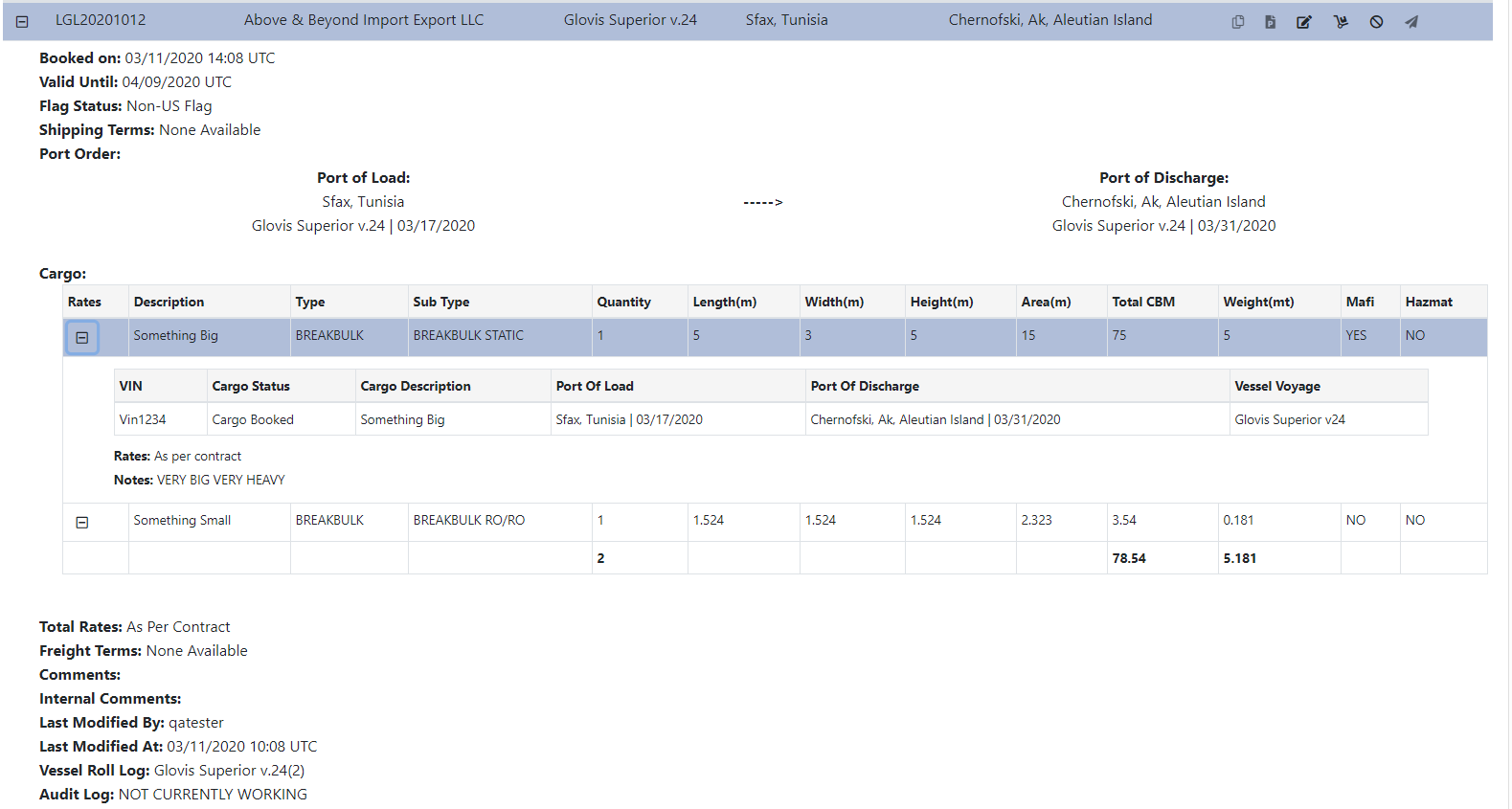
Clicking on the expand button in the left-most column, will open the booking details. This page will contain all of the information relating to this booking as shown below. The Cargo table will show all of the “cargo bundles” and clicking on the details of that cargo bundle will show the details of the specific pieces of cargo relating to that cargo bundle.
¶ Military Booking Reports - Booking List and Cargo Tracker
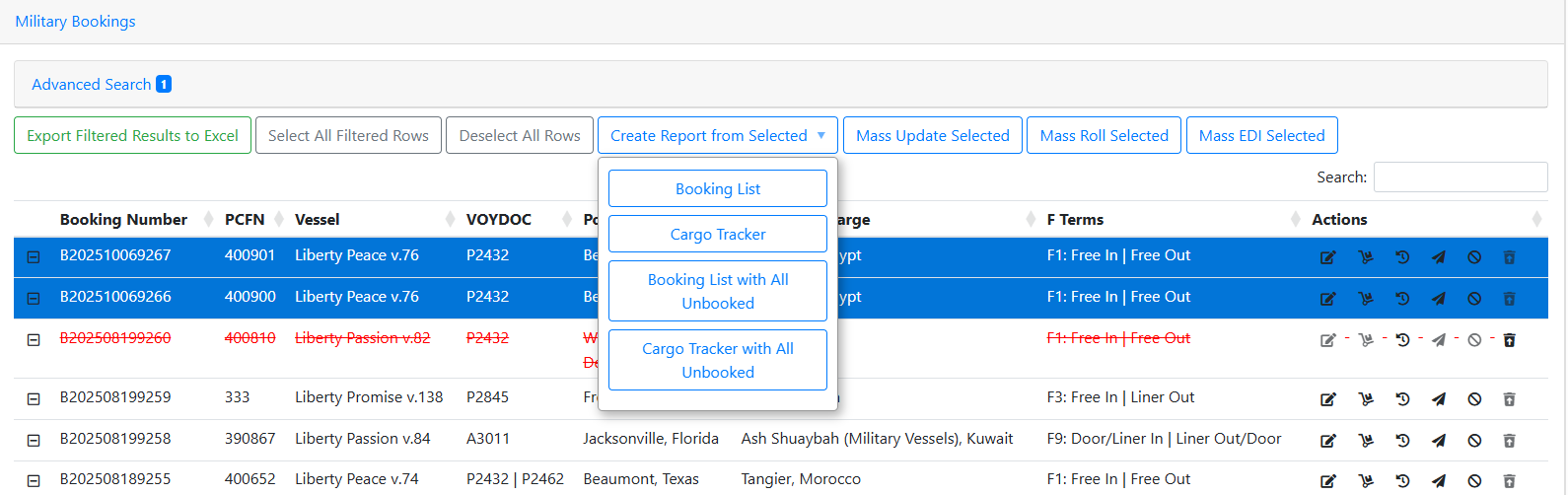
In the Military Bookings table, users are able to create Booking List and Cargo Tracker reports based on selected bookings. Once the desired bookings are selected, the Create Report from Selected dropdown can be opened to reveal four options (Please see the Inventory Module wiki for more information on Unbooked Cargo):
- Booking List: A Booking List report that includes all of the cargo on a booking. In addition, it includes any Unbooked Cargo that is tagged to this Booking Number, listing it in the booking's Prospective Unbooked Cargo table.
- Cargo Tracker: A Cargo Tracker report that includes all of the cargo on a booking. In addition, it includes any Unbooked Cargo that is tagged to this Booking Number, listing it in the booking's Prospective Unbooked Cargo table.
- Booking List with All Unbooked: A Booking List report that includes ALL cargo in the database that does not have a Booking Number associated with it. This report is designed to accommodate a report that would like to include Unbooked Cargo that has not been tagged with a Booking Number.
- Cargo Tracker with All Unbooked: A Cargo Tracker report that includes ALL cargo in the database that does not have a Booking Number associated with it. This report is designed to accommodate a report that would like to include Unbooked Cargo that has not been tagged with a Booking Number.
¶ Booking Modification Requests
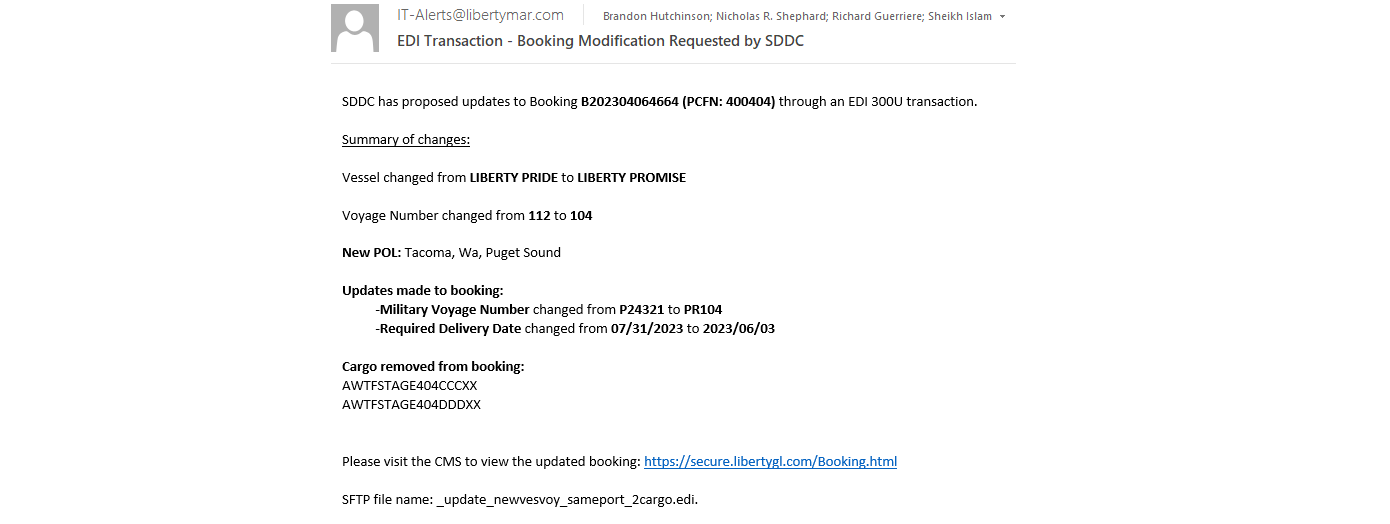
The Military Bookings tab contains the Booking Modification Requests section. When a 300U EDI is received, an email outlining the requested changes will be sent and the request will populate in the Booking Modification Requests section.
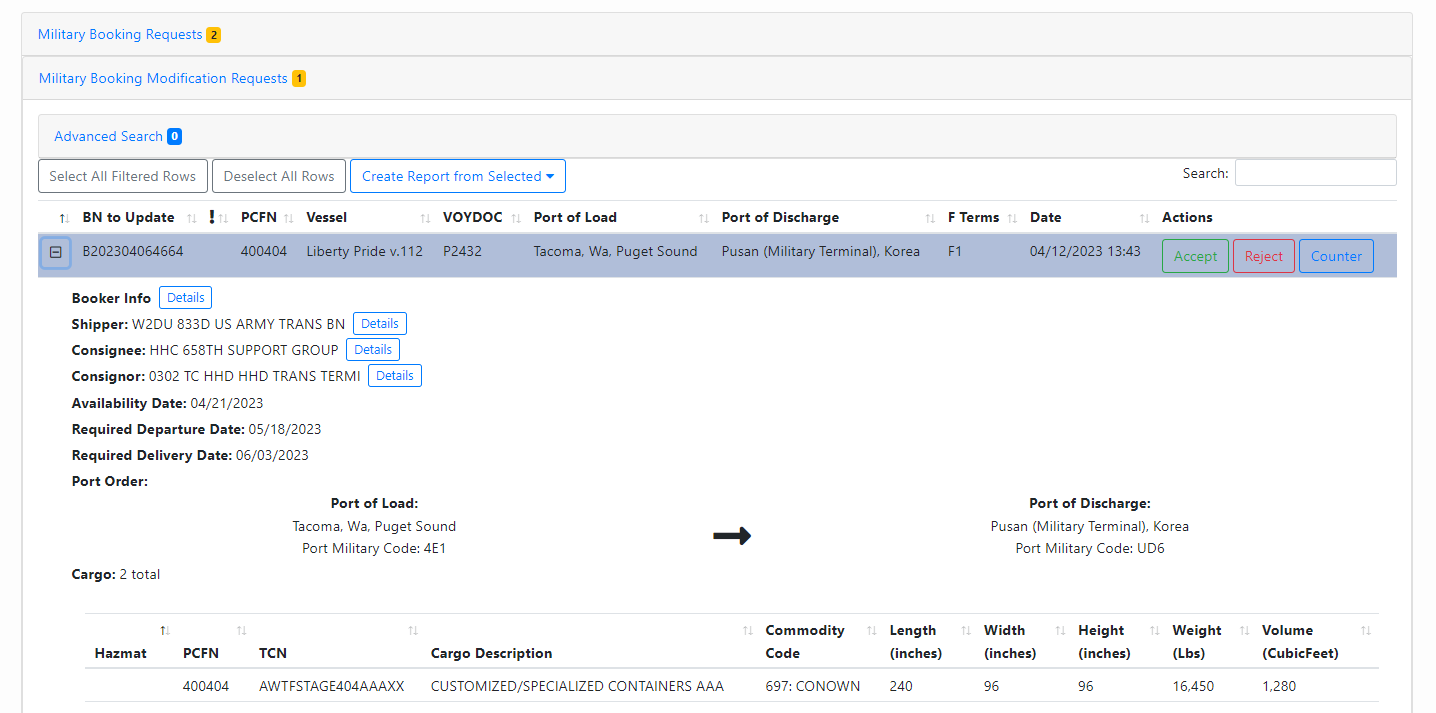
Clicking the plus icon will display all of the details of the modification request, including all cargo. There are three options to proceed with the modification request: Accept, Reject, and Counter. Accepting the modification request will send a 301A EDI and modify the current booking the match these request details. Rejecting will send a 301R EDI and the booking will not change. Countering will allow the user to choose Vessel, Voyage, POL, POD, Transshipment Port, VOYDOC, and Required Delivery Date, send a 301C EDI with these details, and modify the booking with all of the changes outlined in the request details except for the aforementioned options chosen in the Counter Booking Modification Request modal). If an accept or counter is completed, an email summarizing the changes that have been applied will be received. 301A-U and 301C-U will update the booking's roll log.
Receiving a 300U will display in a cargo's EDI Status History if that particular piece of cargo was affected directly (e.g. updated description or dimensions) or if changes were made to the overall booking (e.g. vessel, voyage, ports). The response that was sent will be recorded as a 301A/C/R-U, to differentiate from the initial EDI tag when the booking was created.

¶ Leg Layout
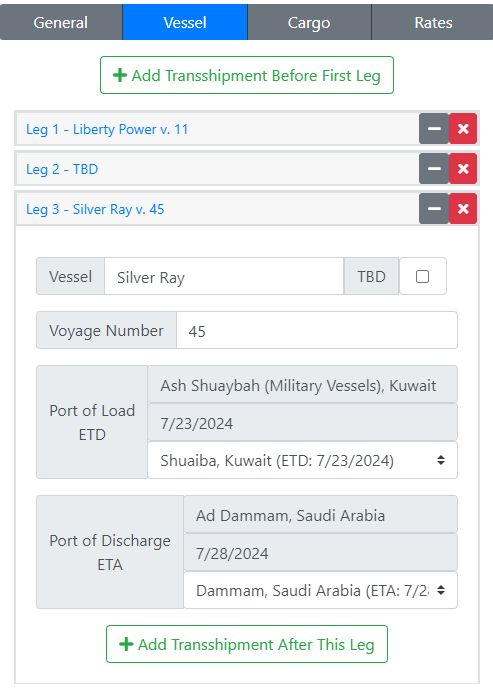
We made the change to the Leg Layout method when requiring each port to link to VSM. Consider the following with regards to manually creating a booking, which closely relate to the other leg layouts such as Roll and Resolve. When we made the switch to each port call requiring a link to VSM, we decided to use a Leg Layout so that each leg could have a specific vessel and voyage attached to it. The only stipulations are that the first leg will be locked into the POL and the last leg will be locked into the POD, both chosen on the General tab. Once an additional leg has been added for a transshipment, the POD of the origin leg becomes free response. Once that port has been decided, it will automatically fill in as the POL for the next leg, allowing free response PODs up until the final leg, which will always be locked in as the FPOD. All fields are required unless TBD is selected, in which case vessel and voyage number are assumed to be supplied later. All dates must be in chronological order. If a date has not yet been provided, it is skipped. If a date fails, that POL or POD shows an error message that the dates must be in order. Even if another date is of order below, only the first out of order date is tagged with an error, as fixing this could potentially fix all other errors. Every booking must have at least one valid vessel and voyage combination; attempting to create a booking with TBD only will be stopped.
¶ Bookings with Missing Vessel Data

Missing Vessel Data Table
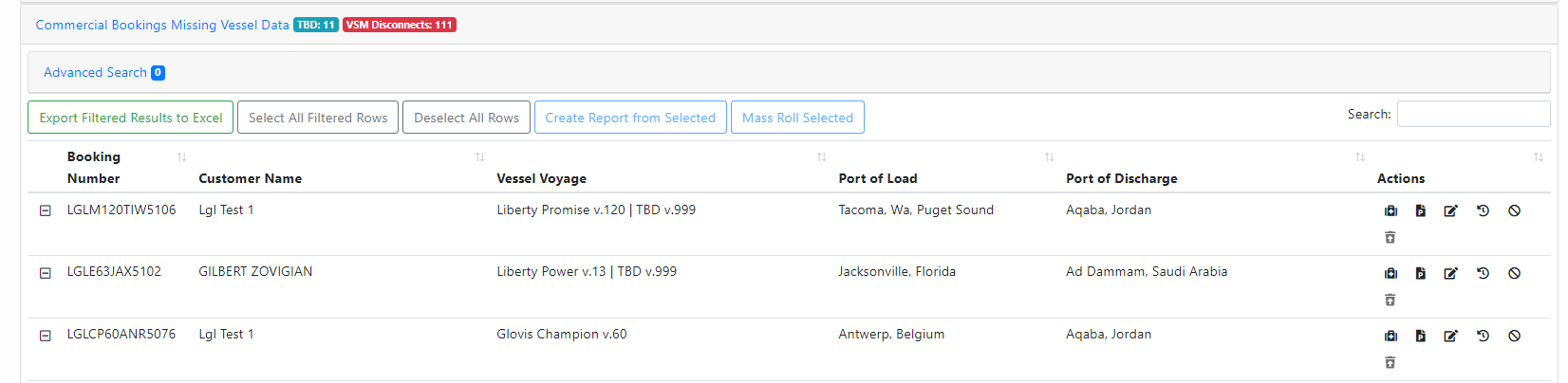
The Missing Vessel Data Table is beneath the Booking Requests Table on the Commercial and Military tabs. These tables will contain all of the bookings that need the VSM Port Call data added by resolving or rolling the cargo. The badges “TBD” and “VSM Disconnects” will display how many bookings in that table are missing port calls due to the use of the TBD placeholder vessel and how many are missing port calls due to a breaking change in VSM that caused the disconnect. Ideally, the VSM Disconnects should be maintained as closely as possible to zero, while the TBD count may fluctuate as a transshipment schedule is planned. The bookings will have the same actions as the Bookings table except that the Roll action has been replaced with the Resolve function, indicated by a medical bag.
¶ Resolve Booking Modal
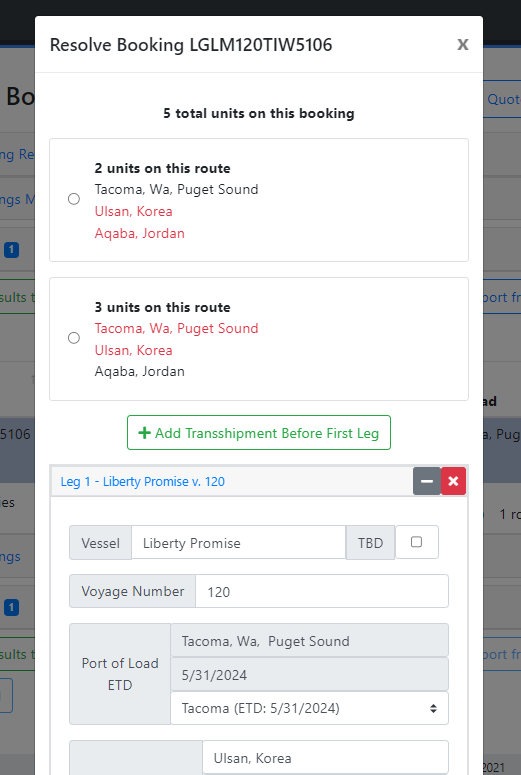
When the resolve action is selected for a booking, the Resolve Booking Modal will appear. This modal will indicate how many units of cargo are on the booking in total, one or more “Unresolved Routes," (if cargo has previously been rolled onto separate routes, this could lead to multiple Unresolved Routes) and a Leg Layout. The Unresolved Routes will be displayed as a card that lists the number of units on that route and all of the ports in a route with the red font indicating which ports are missing VSM Port Call data. The user should select which route that they want to resolve and then select the route, choosing the port calls that these cargo should contain. This is very similar to the Roll function, except instead of choosing which cargo will be resolved, all of the cargo on the selected Unresolved Route will be updated.
¶ VSM: Remove Disconnected Port Calls (removeDisconnectedPortCallsViaLambda)
¶ Overview
Called by the Vessel Schedule Module Lambda when a port call is disconnected in VSM. Nullifies the port call ID on all affected cargo objects and saves the updated bookings back to the database. On completion, a Slack notification is sent if any booking edits failed.
Endpoint: POST /removeDisconnectedPortCallsViaLambda
Request body:
{
"portCallId": "894c2f35-6785-497b-a5ca-0e444799627f",
"cargoIdArr": [686025, 686024, 686023],
"user": "removePortCallsLambda"
}
¶ Flow
1. Fetch cargo with JSON cargo.js → getCargoByCargoIdsWithJsonBatched
2. Fetch booking shells bookings.js → getBookingsForVSMRequest
3. Apply changes & reconstruct bookings.js → createVSMRequestObj
4. Save bookings bookings.js → editAllBookings
¶ Step 1 — Fetch cargo with JSON (batched)
Calls cms.uspCargo_GetBy_CargoIds_WithJson, which returns each affected cargo row including its full CargoJson and BundleIndex. Fetched in batches to avoid SP timeouts.
Returns: [{ CargoId, CargoNumber, BookingId, BookingNumber, BundleIndex, CargoJson }]
Env var: VSM_CARGO_BATCH_SIZE (default: 100)
¶ Step 2 — Fetch booking shells (batched)
Deduplicated booking IDs from step 1 are fetched in batches using cms.uspBookings_Query_ByBookingId_NoBookedCargo. This is intentionally lightweight — it skips the expensive operations that WithCargo performs:
- cargoStatusHistory / ediStatusHistory subqueries (one per cargo item)
- VSM ETA/ETD enrichment via uspBookings_Read_UpdatedRollLogETAsAndETDsFromVSM
- STRING_AGG reassembly of the bookedCargo JSON array
The returned booking JSON always has bookedCargo: [] — editBooking clears bookedCargo before saving to cms.Bookings; the actual cargo lives in cms.Cargo keyed by BookingId. bookedCargo is reconstructed in step 3.
Env var: VSM_BOOKING_BATCH_SIZE (default: 10)
¶ Step 3 — Apply changes and reconstruct bookings
For each cargo from step 1, the disconnected port call ID is nullified across all VSM fields (POL, POD, and transshipment legs). Cargo is then grouped by BookingId → bundleIndex to rebuild the bookedCargo nested array structure ([[cargo, ...], [cargo, ...]]).
For each booking shell from step 2, bookedCargo is set from the grouped cargo for that booking ID.
Only affected cargo is written — non-affected cargo in the same booking is untouched because cms.uspBookings_UpdateCargo_Batch is an upsert: it updates only the cargo records provided and leaves all others in cms.Cargo as-is.
¶ Step 4 — Save bookings
Each updated booking object is passed to editBooking with transactionType: 'VSM PORT CALL UPDATE'. Successes and failures are tracked and returned. A Slack notification is sent if failureArr is non-empty.
¶ Database Objects
|
Object |
Type |
Purpose |
| cms.uspCargo_GetBy_CargoIds_WithJson | Stored Procedure | Returns cargo rows with CargoJson and BundleIndex |
| cms.uspBookings_Query_ByBookingId_NoBookedCargo | Stored Procedure | Returns booking shell JSON (no cargo enrichment) |
| cms.uspBookings_Query_ByBookingId_WithCargo | Stored Procedure | Not used in this flow — too expensive for large datasets |
| cms.uspBookings_UpdateCargo_Batch | Stored Procedure | Upserts cargo records (called internally by editBooking) |


¶ Environment Variables
|
Variable |
Default |
Description |
| VSM_CARGO_BATCH_SIZE | 100 | Number of cargo IDs per batch in step 1 |
| VSM_BOOKING_BATCH_SIZE | 10 | Number of booking IDs per batch in step 2 |
¶ Source Files
- cms/routes/bookings.js — endpoint, getBookingsForVSMRequest, createVSMRequestObj, editAllBookings, readBookingsByIds
cms/routes/cargo.js — getCargoByCargoIdsWithJson, getCargoByCargoIdsWithJsonBatched
¶ Important Notes
If you have any questions or issues to report regarding the Booking Module, please submit a help desk ticket with “Booking Module Help/Bug” in the subject line.