¶ Dashboard User Guide
The dashboard serves as the home screen for the CMS, each user has their own custom layout comprised of only the widgets they choose.
There are only two buttons that are usable on the dashboard:

When the dashboard is loaded, you will only be able to choose “Customize Dashboard”, which will open the following window:
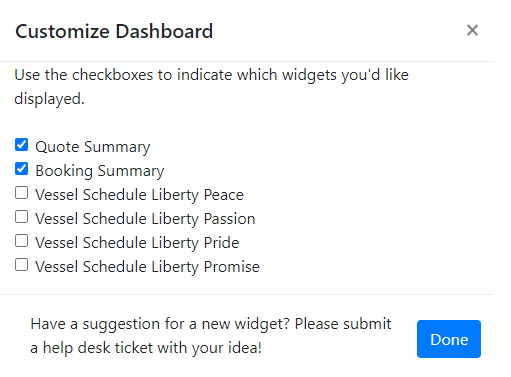
Choose which widgets you'd like to have display on your dashboard by selecting the check boxes on the left.
Once you have selected all the widgets you'd like, and unselected the ones you do not want, press “Done”
NOTE: As widgets are selected they will appear in the top left of your dashboard, in the order in which they were selected.
Once you have the widgets you'd like on your dashboard, you can freely move and resize them to your liking.
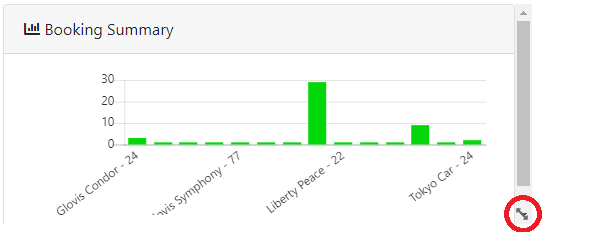
In order to resize a widget move your cursor to the bottom right of the widget you wish to resize, and then click and drag your cursor to the desired position.
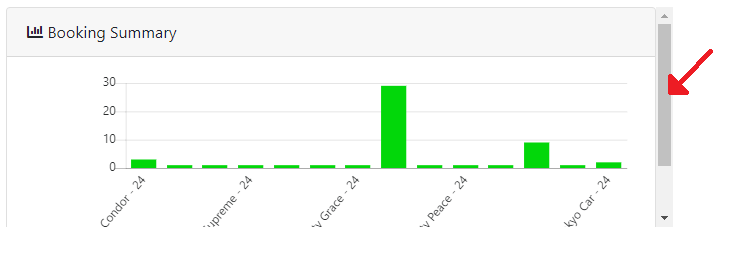
In order to move a widget, click and drag the widget you wish to move to it's new position. You can click anywhere on the widget to move it except for the scroll bar on the right side.
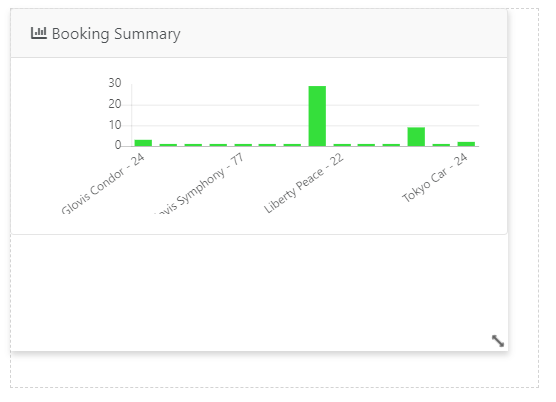
When resizing or moving a widget you will notice a dotted line appear, this represents the new area that the widget will occupy. Keep in mind, no other widgets will be able to occupy this same space.
After any changes are made to the dashboard from its initial state the “Save Dashboard” button will become clickable. All you have to do is click the button once.

After clicking the button your changes will begin to save, do not attempt to customize anything while the changes are still being saved.
Once the changes have been saved you'll notice the buttons return to their original state.
¶ Important Notes
You are free to add, remove, move, or resize widgets at any point. You do not have to press “Customize Dashboard” before moving or resizing, this button's purpose is only to control which widgets are visible and which are not.
Any changes made to the dashboard without pressing the “Save Dashboard” button will not be saved, so make sure to save your changes when you are finished.
Changes can only be saved if you are logged in to your account.
If at any point you come up with an idea for a widget that would be useful to you or a team member, please submit a help desk ticket with “Dashboard Widget Request” in the subject line to helpdesk@libertymar.com
In the body of the email please include information about the desired widget including: the type(bar chart, table, etc.), the data to be displayed, and any other details that would help us in creating the widget as fast and accurately as possible!
If you have any questions or issues to report regarding the dashboard, please submit a help desk ticket with “Dashboard Help/Bug” in the subject line.