¶ Quote User Guide
A list of the most recent quotes will be populated with actions to search, view, edit, copy and delete any rate quote.
There is a filter button that when clicked will display a form that will allow you to filter all of the quotes in the system based on the details provided.
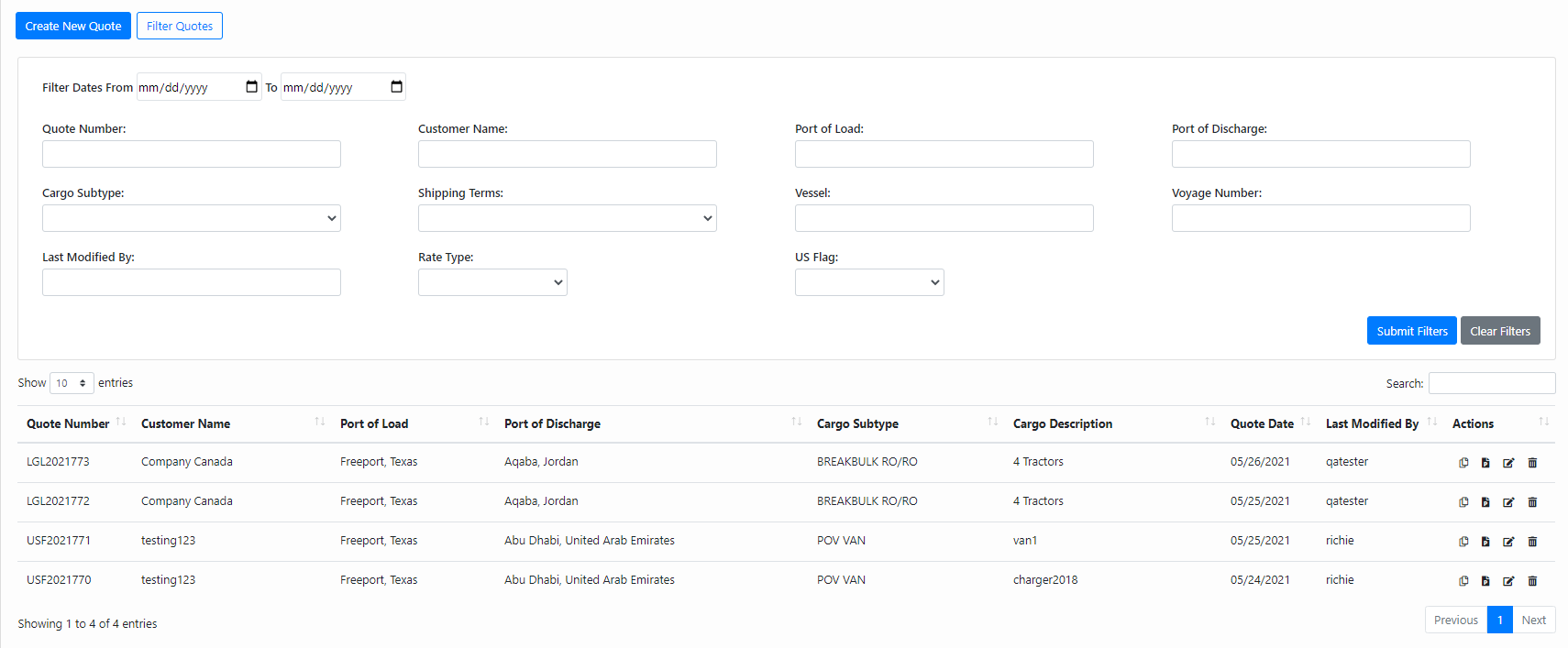
¶ Actions
¶ Copy Action
Copy action will create a completely new rate quote from an existing rate quote. This action is performed by clicking on the

icon under the “Actions” column next to the quote to be copied. This will bring up the create new quote popup modal with the copied rate quote’s information prepopulated.
¶ Preview Action
Preview action will display the rate quote pdf of the selected quote. This action is performed by clicking on the

icon under the “Actions” column next to the quote to be viewed. From this page you can download a copy of the pdf to your local computer.
¶ Edit Action
Edit action will create a new rate quote that will have the same base quote number but with an appended version number to distinguish the different versions/edits of a quote for the customer. This action is performed by clicking on the

icon under the “Actions” column next to the quote to be edited. This will bring up the create new quote popup modal with the edited rate quote’s information prepopulated.
¶ Delete Action
Delete action will mark the rate quote as deleted and will prevent that rate quote from showing up in the list of rate quotes. This action is performed by clicking on the

icon under the “Actions” column next to the quote to be deleted. It is recommended to only do this for quotes that have been made in mistake and have not been given to a customer.
¶ Create New Quote
Step by step process to create a new rate quote. (The same screens will be used to copy and edit an existing rate quote, only difference will be that most of the fields will be prepopulated)
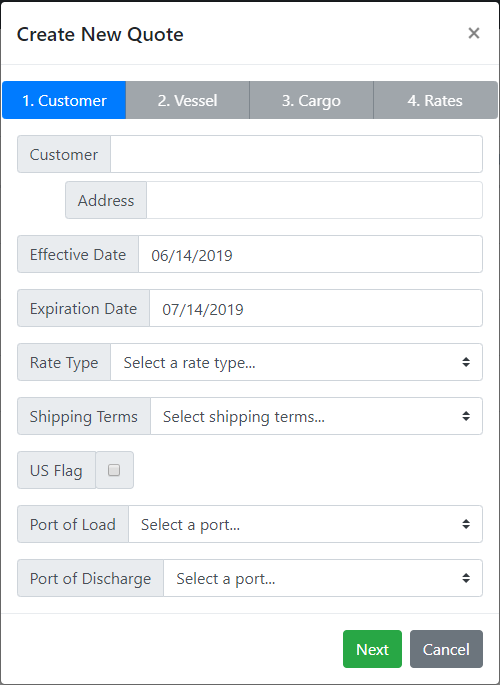
¶ Customer Tab
General information about the quote and customer.
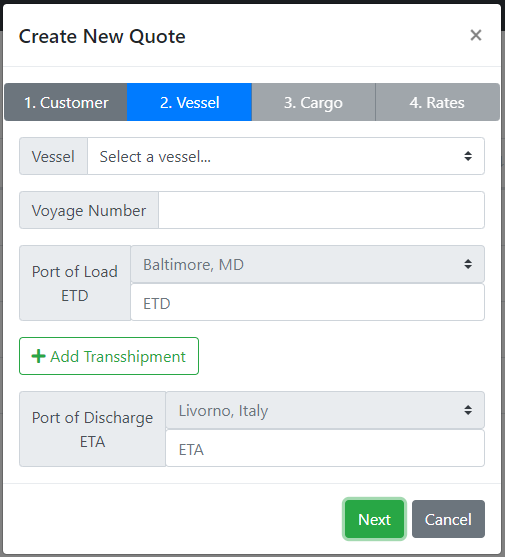
¶ Vessel Tab
Information about what vessel/voyage, dates and transshipment information.
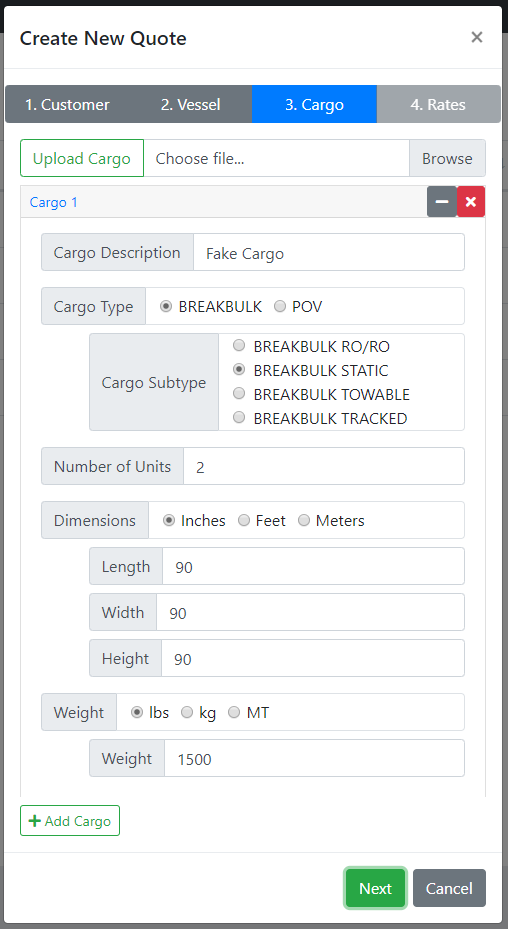
¶ Cargo Tab
Information about the cargo. (Currently the upload cargo button doesn’t work)
¶ Rates Tab
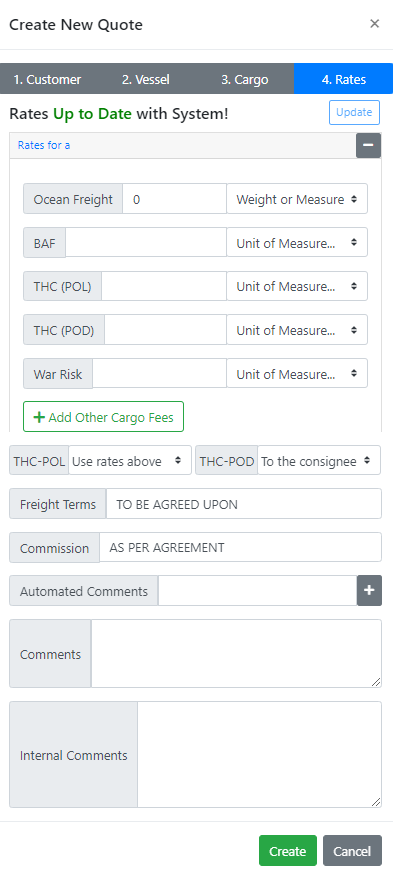
Information about the rates. After clicking the next button on the cargo tab, the system will search the database to see if we have a rate relating to the information that was entered on the other 3 tabs. If the database finds data then that data will auto-populate on the rates page. If not, the user will be required to fill out that information. After clicking the create button the current popup will disappear and another popup will appear with an auto-generate PDF preview of the quote. This pdf can then be downloaded to be attached and emailed to the customer.
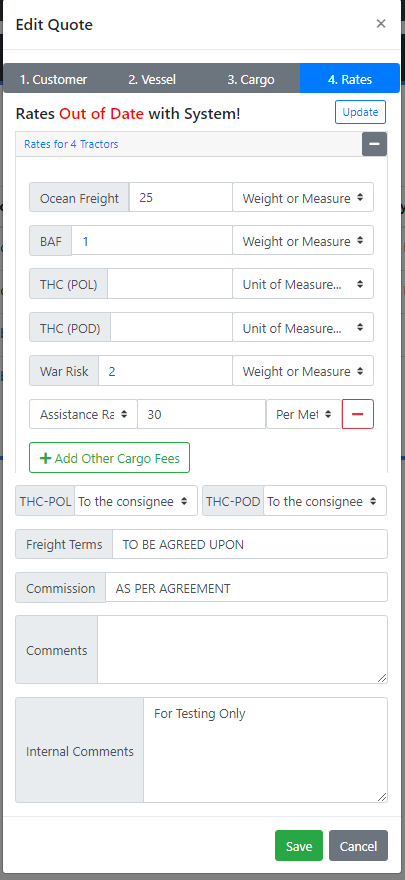
If a rate quote is being edited or a copy is being created, instead of the rates being taken from the database they will be taken from the rate quote being edited or copied. Then an option will appear the top of the rate tab which will allow you to update all the rates for all cargo on the quote from the data from the database. An example of this is shown here below:
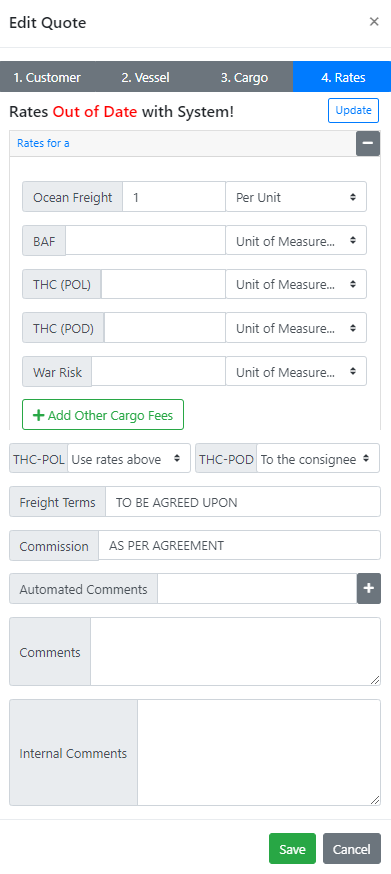
Click the “Update” button located here to overwrite all rates for all cargo on this quote with any matched data from the database. The rates for these cargo can be controlled on the Rate Management module.
¶ Important Notes
If you have any questions or issues to report regarding the Quote Module, please submit a help desk ticket with “Quote Module Help/Bug” in the subject line.