¶ Report User Guide
The Report Module serves as a way for users to search, view, & create reports related to all cargo within the CMS, regardless of its current status. This module does not include any functionalities related to creating cargo or updating existing cargo.
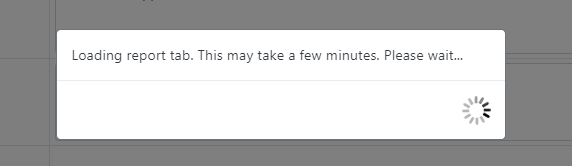
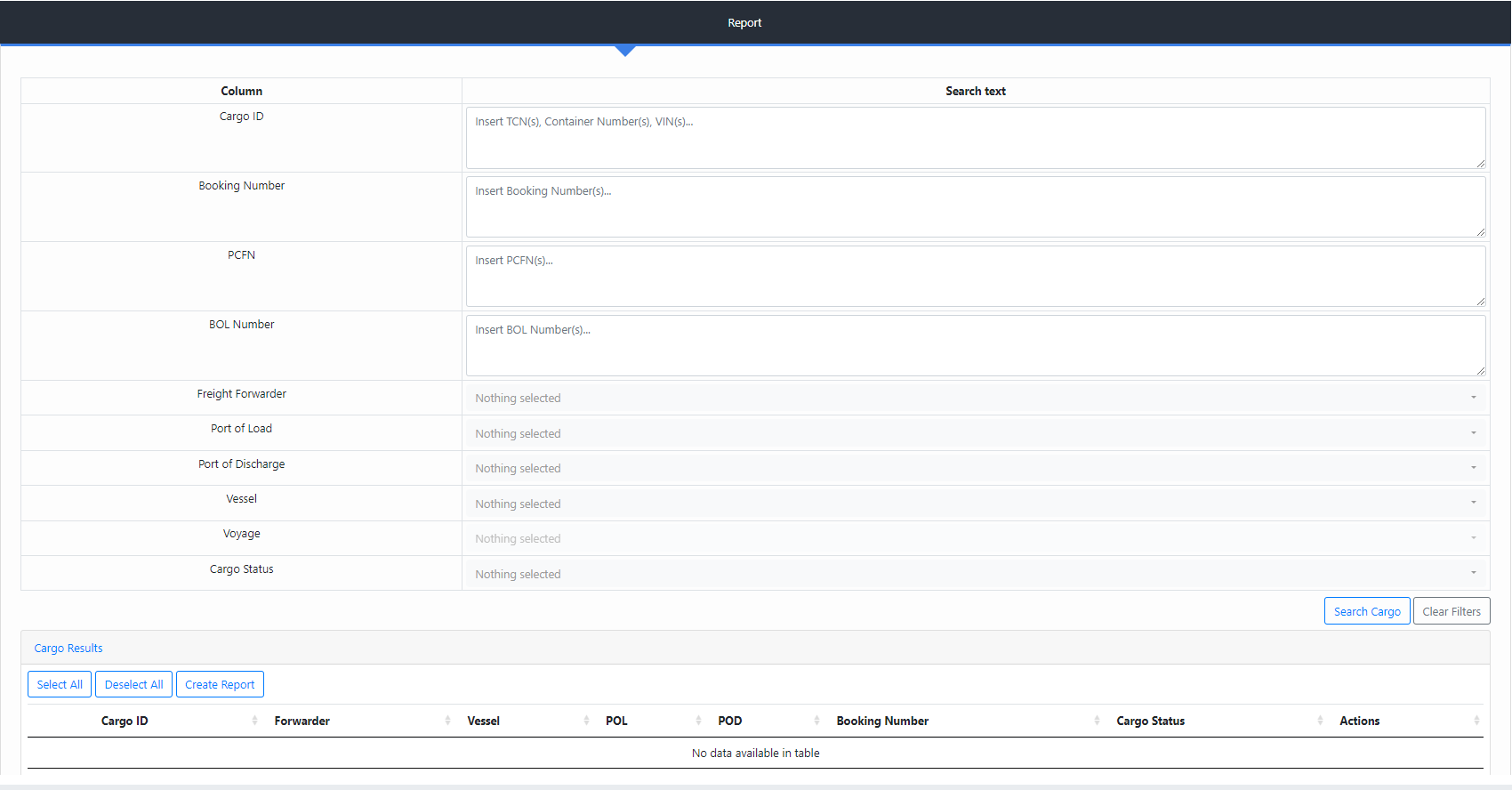
Once the Report tab has been initialized, as seen in the picture above, the user may use any of the provided ‘Search text’ inputs to customize their cargo search. Freight Forwarder, Port of Load, Port of Discharge, Vessel, Voyage, & Cargo Status have dropdown selectors, that permit multiple options to be selected. Cargo ID (TCN, Container Number, VIN), Booking Number, PCFN, & BOL Number do not have dropdown selectors, and instead accept text inputs which allows users to quickly paste multiple items into an input. Once all desired inputs have been filled out, the user can press the ‘Search Cargo’ button which will find all matching data & display them in the ‘Cargo Results’ table at the bottom of the page. The ‘Clear Filters’ button may also be used at any time to remove all entered information from the above inputs. At least one input must be entered in order to use the ‘Search Cargo’ button!
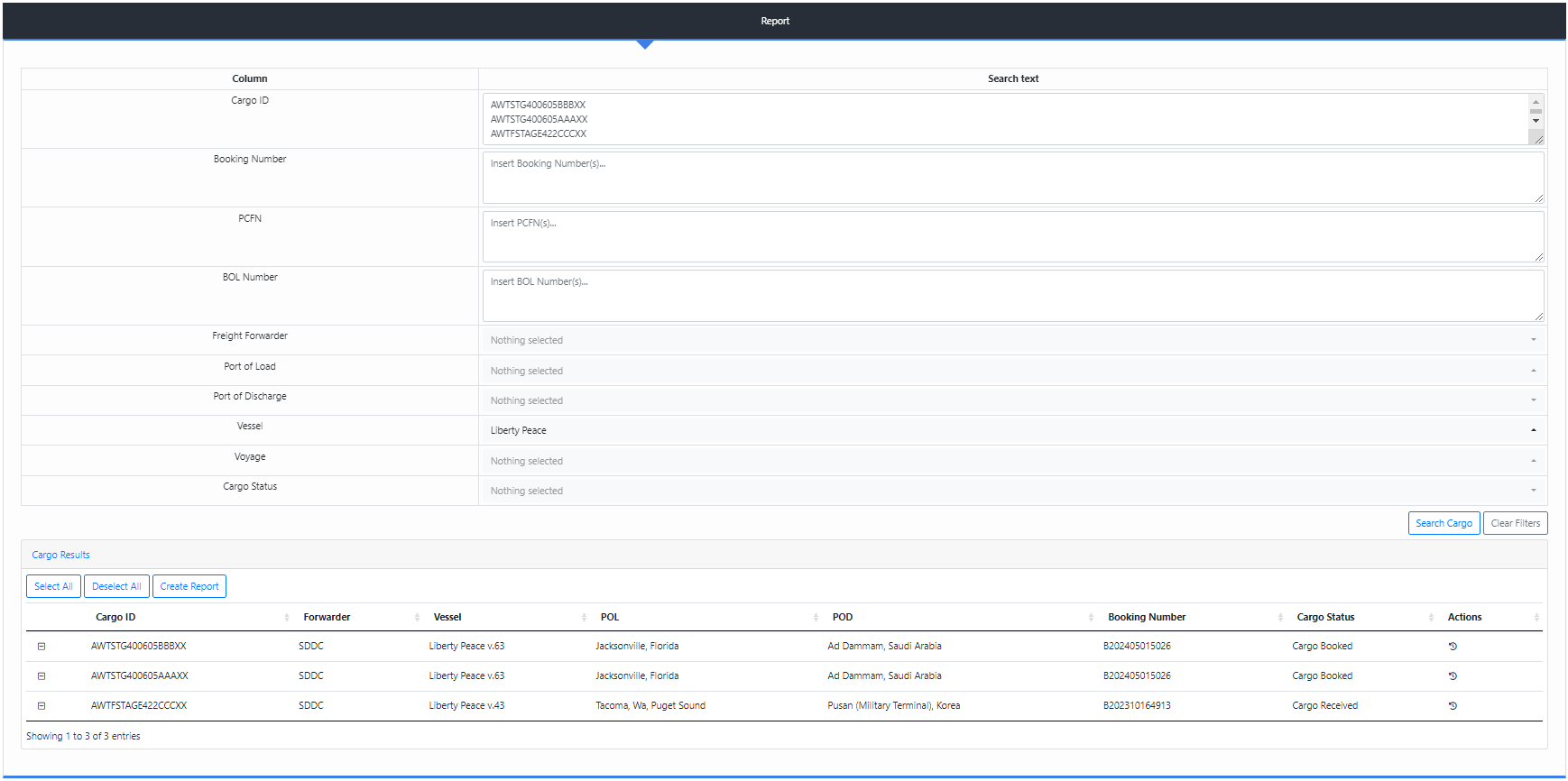
NOTE - When entering multiple items into one of the text inputs (Cargo ID, Booking Number, etc.), each line represents one input as seen in the above example with ‘Cargo ID’.
Once the Cargo Results table has been populated with data, there a few functionalities made available to the user.
- Each cargo item can be further inspected by clicking the detailed dropdown button to the left of the Cargo ID Column
- Each cargo item has a ‘Cargo History’ button in the ‘Actions’ column that can be used to view the history of the associated piece of cargo
- Reports can be generated by clicking the ‘Create Report’ button, which will prompt the user with the following modal
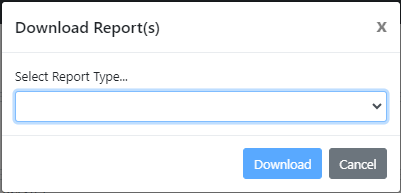
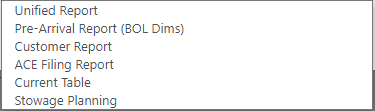
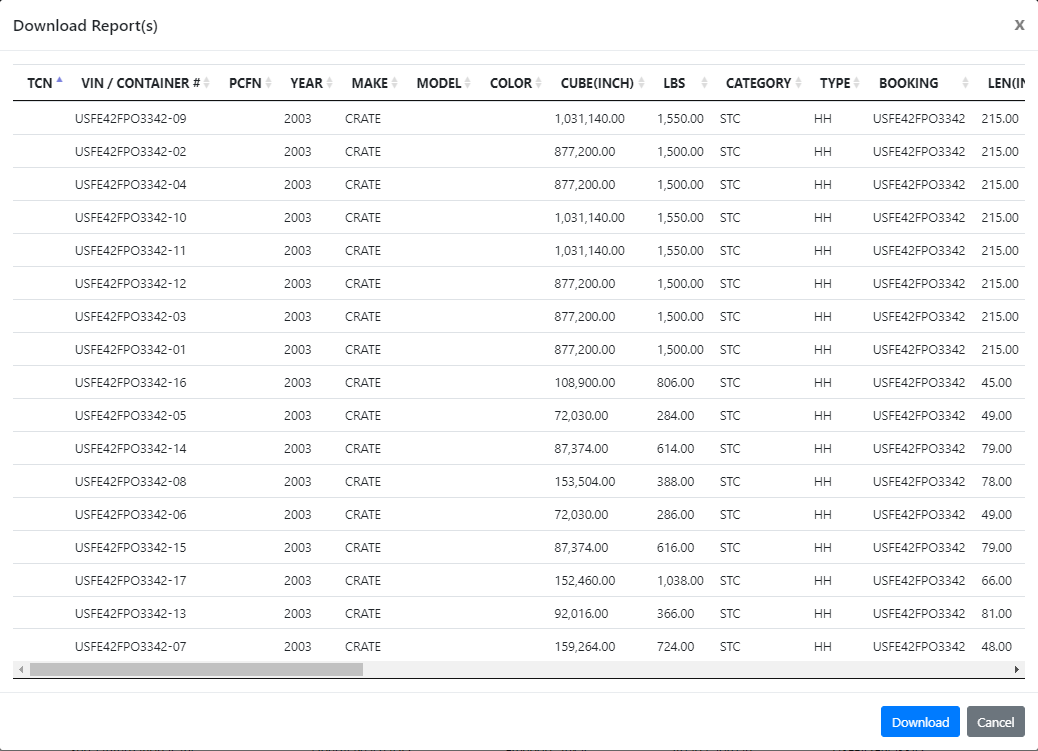
After selecting a type of report, a new modal will appear which provides the user with a preview of the generated report. The user may then choose to download the generated report as a Microsoft Excel Spreadsheet File (.xlsx) by clicking the blue ‘Download’ button at the bottom of the modal.
¶ Important Notes
If you have any questions or issues to report regarding the Report Module, please submit a help desk ticket with “Report Module Help/Bug” in the subject line.