¶ LMC Reports - User Guide
¶ Introduction
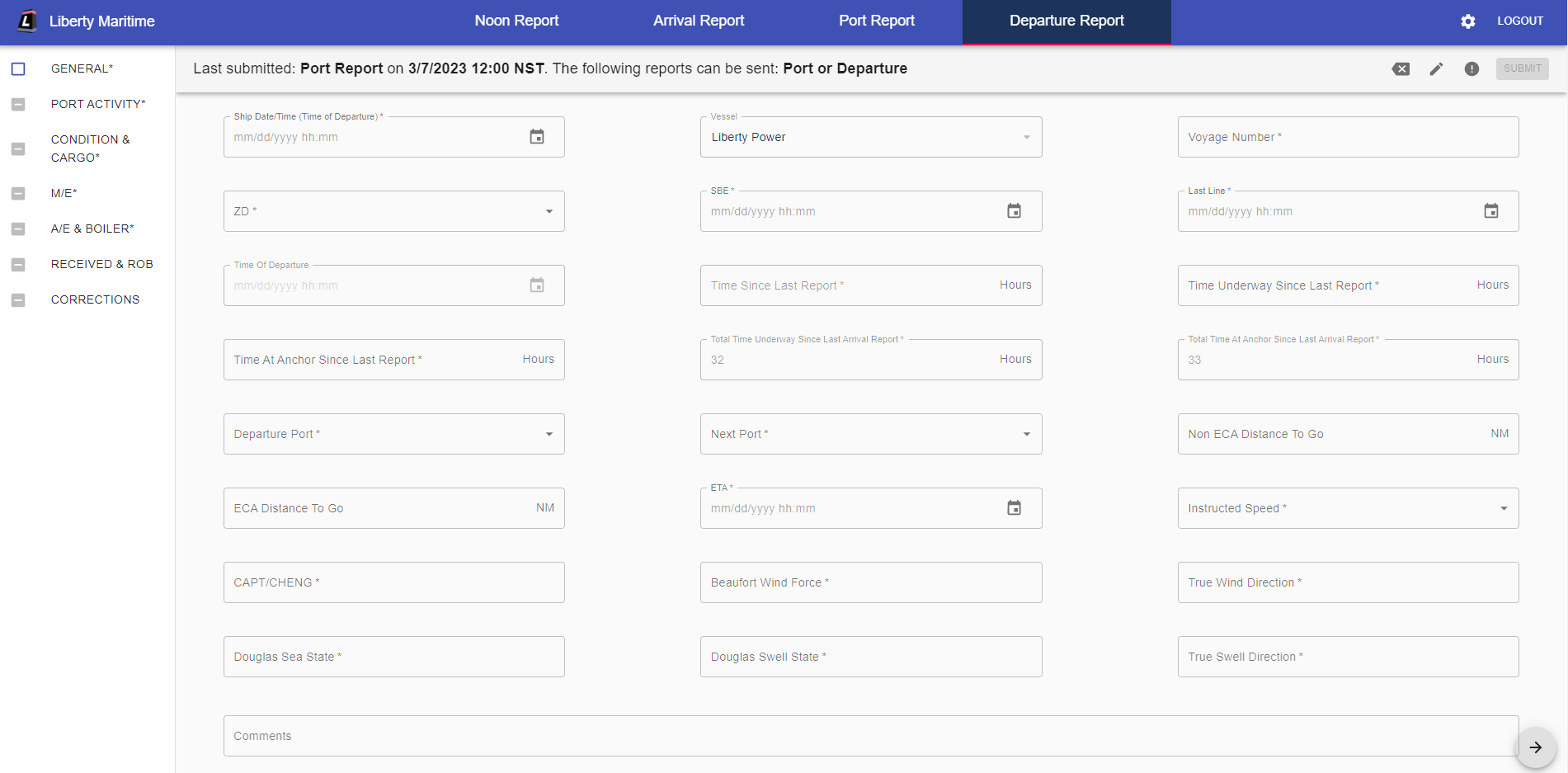
The LMC REPORTS portal is designed for the use of any LMC vessel or chartered vessel to report status and position information to the home office and operational groups. The reports are used for entering the daily information required by LMC. The Portal consists of the following reports: NOON REPORT, PORT REPORT, DEPARTURE REPORT and ARRIVAL REPORT.
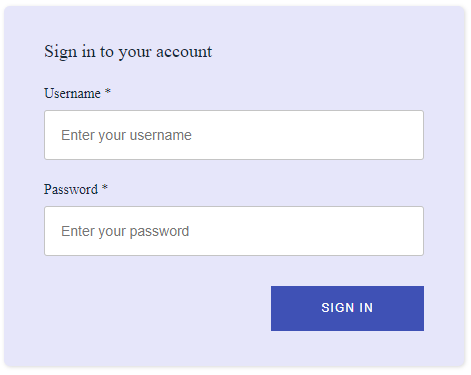
Every ship will receive their own unique log-in credentials. Once logged in the portal will automatically know which vessel you are submitting from. If you did not receive any credentials please contact Brandon Hutchinson (bhutchinson@libertymar.com) or Tom Wozniak (twozniak@libertymar.com).
The app is built to use Google Chrome, using any other browser may result in pages not loading correctly.
¶ Buttons to Press

The Bar at the top has 6 buttons in total, each of the Noon Report, Arrival Report, Port Report, and Departure Report are buttons that allow you to move to the appropriate page to submit each of those reports. The logout button will do as advertised and log you out of your account. The settings button will open a modal which provides information on the current release version & environment of the LMC Reports Portal.
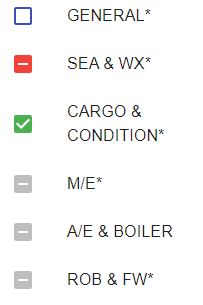
On the Left is the sections that are available in each report. The example shown here is taken from the Noon Report. Each of these are clickable and allow you to move to and from each of the report’s many sections. The square on the left indicate the status that each section is in. The red box means that the section is incomplete or some of the required sections are not filled in. The green box means that that section is fully completed, and the white and blue box represents the current section that you are in.
The Other way to move in between sections is by using the arrow buttons at the bottom right of your screen. The right arrow will move you down the list and the left arrow button will move you up the list. The buttons will either be greyed out or not displayed altogether if you reach a page that is already at the left/up most section of this report or the right/down most section of this report.

The last buttons available to click on this page are these five which can be found in the top right of the page and under the Log Out Button. The example I took is again from the Noon report and has an extra button.
From left to right:

This button is the “Clear All” Button, which will clear all report fields for all reports allowing you to restart your report submission. It can also be used to exit from the “Edit” mode & return to the default “Insert New Report” mode

This button is the ‘Edit Previous Report’ Button which will open up a list of previously submitted reports for correction. This is used to edit any previously submitted reports that may have been incorrect.

This is the ‘Copy Last Report’ Button, which is ONLY AVAILABLE ON THE NOON REPORT. It will copy the last report made and populate the forms with that information, some of the values will not populate automatically so some data entry is still involved.

This button is used to check if the section you are currently in has been entered correctly.
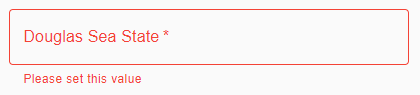
Any values that have not been entered correctly will light up red, as shown to the left.
Once all of your data has been entered correctly and you are ready to submit the, the “SUBMIT” button will turn blue indicating that the data entered is sufficient and the report can be submitted.
¶ Types of Inputs
There are many types of inputs available in each form, this section will go over all of them and show you how to enter information properly.

This is a Date/Time input, when you click the calendar icon on the right it will first open up a calendar where you can choose the Day, Month, and Year that you wish to enter, once you have selected a date, A clock will pop up, first you will choose the hours (in 24hour format) by moving the hand to match the numbers on the INNER circle. Next the clock will turn into another clock where you may now move the hand to choose the minutes. If you do not wish to enter the Date/Time this way, you may click the Time/Date Box normally and type it in manually.

This is a Time Span input, The guide on the right can be used to see in which format the data should be entered, The example above shows that the first 2 digits are to represent the number of days, the next 2 are to represent the number of hours and the last 2 are used to represent the number of minutes.

This is a searchable drop-down input, indicated by the small upside-down triangle on the right. When you click into it, you are greeted with a dropdown consisting of all the available options, You may scroll through the options to choose one or you may begin typing what you are looking for and the drop-down list will automatically shrink and show you only the options that contain what you have typed. Hitting the ‘Enter’ key on your keyboard will automatically select the top choice of the drop-down list.

Input boxes whose name contains a * indicates that the field is required and will not let you submit the report unless the field is filled out.
¶ Report Submission Sequence Restrictions and Last Report Info

A banner at the top of the page, underneath the different report type tabs, displays the last submitted report type, report date, and a list of valid report types that can be sent. Trying to submit a report that does match one of the types listed in the banner text is disabled in order to preserve the correct sequence order for report types. If for any reason it is necessary to submit a report that does not match one of the reports listed above, please contact the IT Team at helpdesk@libertymar.com
¶ Locked Values & Auto-Calculations
Some fields throughout the reports are “locked & auto-calculated”, meaning that you will not be able to manually enter any data into these fields, but instead they are auto-calculated based on the other fields on that report. Below is a table listing every “locked & auto-calculated” field on each report.
| Noon Report | Arrival Report | Port Report | Departure Report |
| TimeSinceLastReport | TimeSinceLastReport | TimeSinceLastReport | TimeSinceLastReport |
| Average Speed | Average Speed | TTL Time Underway | |
| ME Slip | ME Slip | TTL Time at Anchor | |
| ME TTL Slip | TTL Maneuvering Distance | ||
| Time of Arrival | Time of Departure |
The Time Since Last Report field, for example, is now completely disabled from manual entry and is being automatically calculated based off the following: Last Report Date/Time, Last Report Timezone, Current Report ShipDateTime, and Current Report Timezone.
NOTE! - Several fields within the LMC Reports Portal are completely unable to be edited because enabling corrections on these fields would cause invalid data due to the features not being fully built out. For example, ShipDateTime is disabled from being modified on correction reports because enabling this could cause invalid ShipDateTime values to be entered, thus bypassing current validations & permitting bad data quality. Similarly, all ROB-related fuel fields are also disabled from being modified on correction reports. For example, modifying a past consumption value would need to update the ROB for the target report as well as ALL subsequent reports to ensure the ROB calculates correctly. Both of these examples along with a few others are thus disabled from being modified on correction reports, however, future enhancements exist to support the modification of such fields on correction reports.
¶ Fuel Consumptions, Corrections, & ROB

In addition to the fields mentioned in the above section – all fuel-related ROBs are locked and auto-calculated. The following types of fields affect the current ROB values: ME/AE/BLR CONS since last report, Received fuel on port/departure reports, and any type of correction. In order to ensure that the ROB values are kept accurate and up-to-date, editing any past report’s values that affect ROB (mentioned above) is completely disabled. In order to “correct” a past report’s ROB values it is now necessary to use the newly created “Corrections” section on each report.
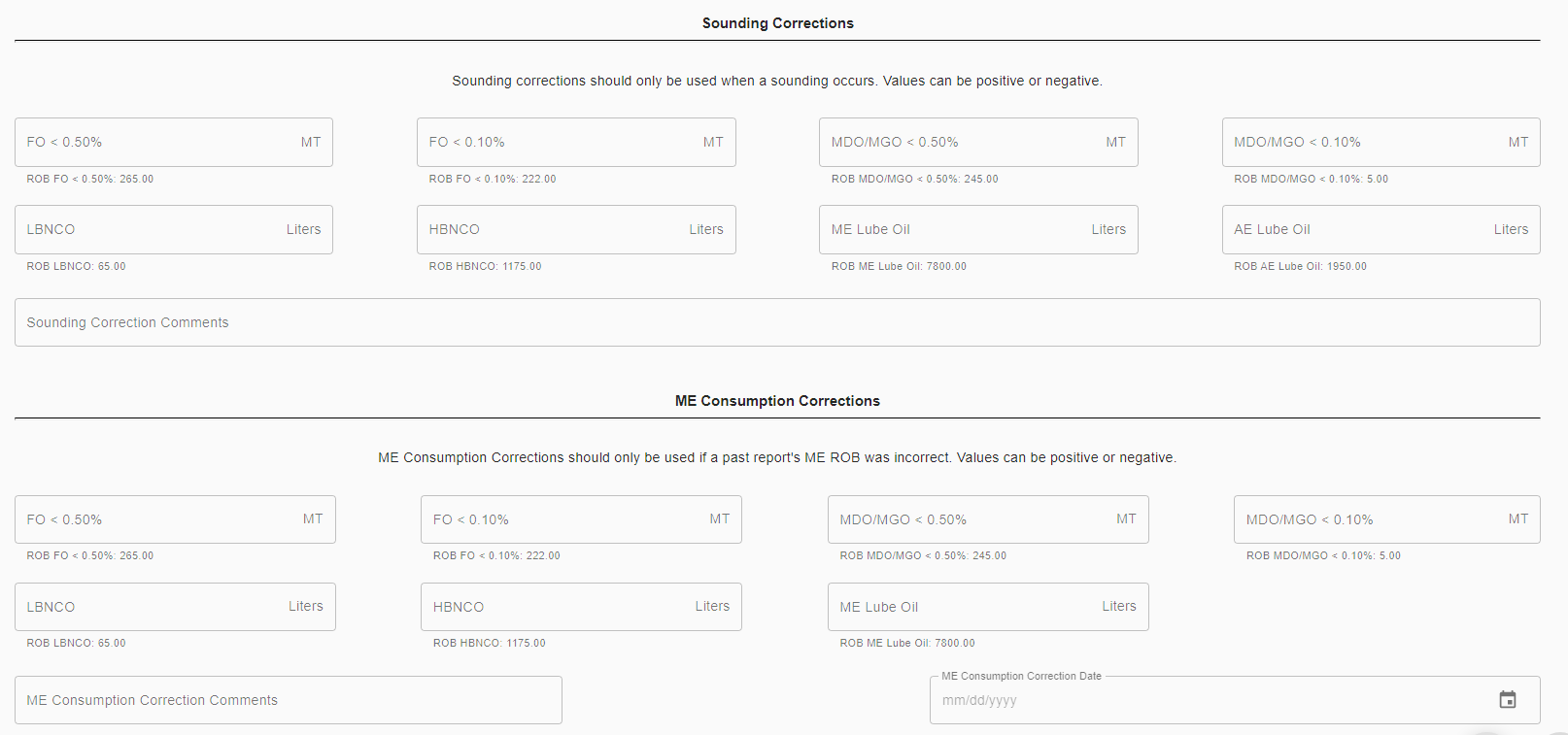
There are two main types of corrections on this new section: Sounding Corrections & Consumption Corrections. Correction values are allowed to be both positive and negative, and entering any value into one of these fields will require a “Correction Comment” explaining any necessary or relevant details regarding the correction. If the corrections being applied to a report are due to a sounding that has occurred on or near the report date, then use the “Sounding Corrections” sub-section. However, if you would like to update the current ROB values due to a past report’s values being incorrect, it is required to use one of the other three sub-sections underneath the sounding corrections: ME Consumption Corrections, AE Consumption Corrections, or Boiler Consumption Corrections. Entering in a value into any of these fields will then require that the associated Correction Comment & Correction Date fields have values inputted into them (Note that doing so will not modify past ROB values as mentioned in the above section)
¶ Auto-Updates on Report Edit
Due to the auto-calculations that have been are in the system, a few “Auto-Updates” are in place to ensure the accuracy of the data on the reports.
- The first notable “Auto-Update” occurs when a user edits a past report and specifically updates the “ZD” field. For example, if there are two reports in succession both with 24 hours as Time Since Last Report, and the first report’s ZD is updated from GMT +2:00 to GMT +1:00, the first report’s Time Since Last Report will change from 24 to 25. However, this change will also update the next report’s Time Since Last Report to change from 24 to 23 hours. This is because the ZD field was updated, meaning that Time Since Last Report for the following report now also needs to be updated since it is calculated based on the Last Report Time & Time Zone. If the next report after was a noon or arrival, the Average Speed will also be adjusted to account for the new Time Since Last Report automatically, and two report emails will be sent out, one for the actual report that was edited and one for the associated next report that was automatically updated.
- The other notable “Auto-Update” occurs when a user edits a past Port Report that has a following departure report already, specifically the Maneuvering Distance, Time Underway and Time at Anchor fields. Since these fields are now being auto-calculated based on the accumulation of all hours from successive port reports Time Underway/Time at Anchor. If for example, a port report’s Time Underway is updated from 5 to 10 hours, and there was already a departure report submitted after this port report, this associated departure report’s Total Time Underway will also be updated to +5 hours from whatever it was previously. Two emails will be sent out, one for the original port report being edited, and one for the associated departure report that’s Time Underway / Time at Anchor values have been updated.
¶ Alerts
‘Vessel Alerts’ are configured within the report emails, such that if a maximum value is exceeded for a given field, or a minimum value is not reached, the value will be highlighted yellow on the report email. These alerts are configurable per vessel and per field on each report.
Additionally, ‘Exceptions Alerts’ were configured in a later project within the report emails. A predefined data set using historical LMC Vessel Report data was configured, and based off of the current report's: weather condition, RPM, & draft condition (ballast/full/half-full) the Average Speed & Total ME CONS FDE are compared to the historical data point to see if it is within an acceptable range (+- x variance, also configured in the data set). If the data point falls outside the expected range or there is no matching historical data point, the field(s) are highlighted in orange and exception message is displayed in the report email.
¶ Copy Previous Noon Report
The copy previous noon report functionality is disabled when the last report is not a noon report. Only the following select few fields are being copied to ensure data accuracy on the noon reports: IMO Number; LAST PORT; NEXT PORT; INSTRUCTED SPEED; BALLAST/LADEN; TOT CARGO ONBOARD; CAPT/CHENG