¶ Customer Schedules
¶ Non-Logged In Features
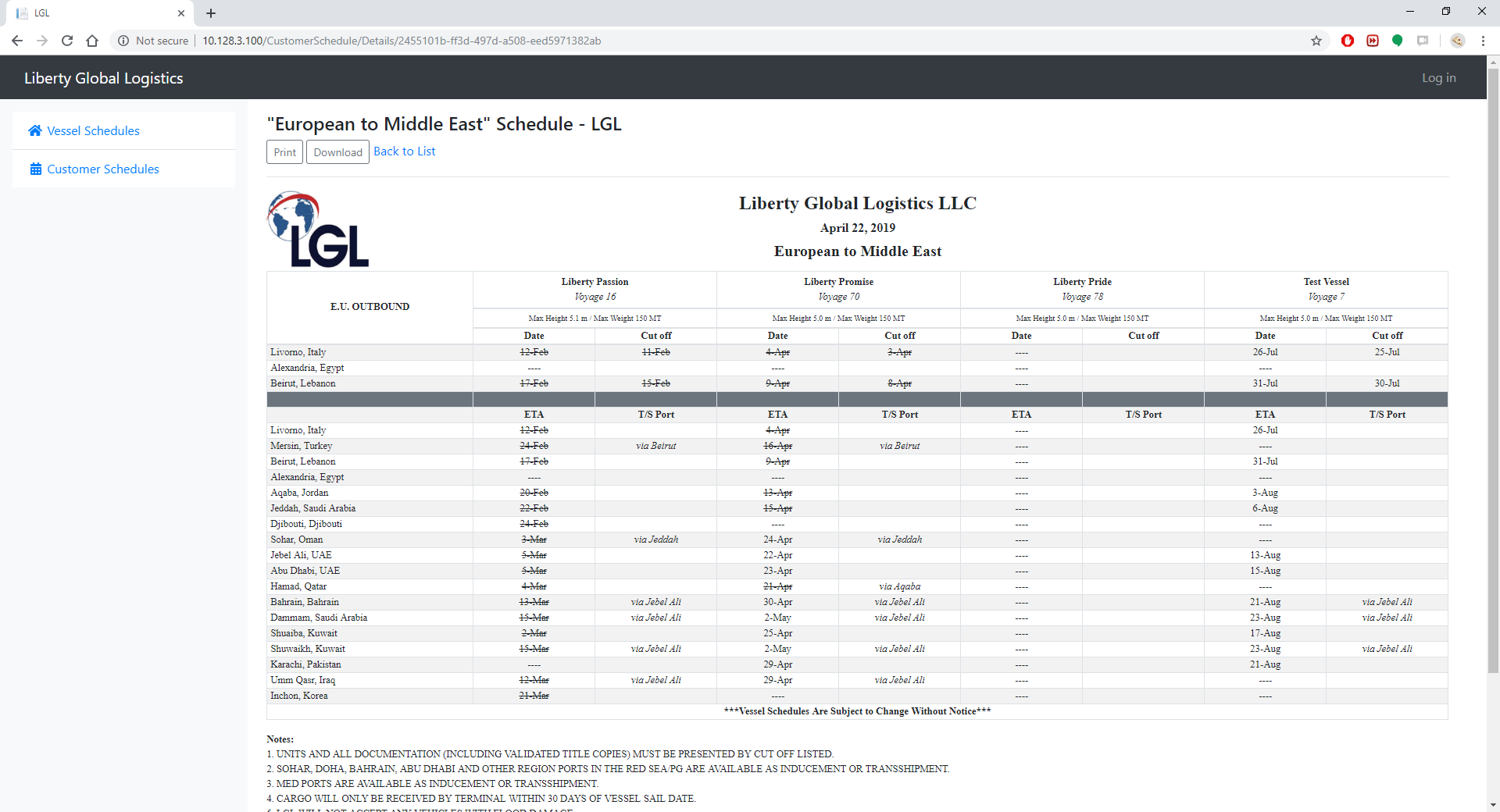
On this page the user will be able to view the most recently edited version of each customer schedule. The user will be asked which Customer Schedule they would like to view and after clicking on a Customer Schedule type, the user will be displayed with the most recently updated Customer Schedule of that type.
The user will be able to view, download or print this schedule but will not be able to edit the schedule since they are not logged in.
*This page is equivalate to the Sailing Schedules found in the L-drive
¶ Logged In Features
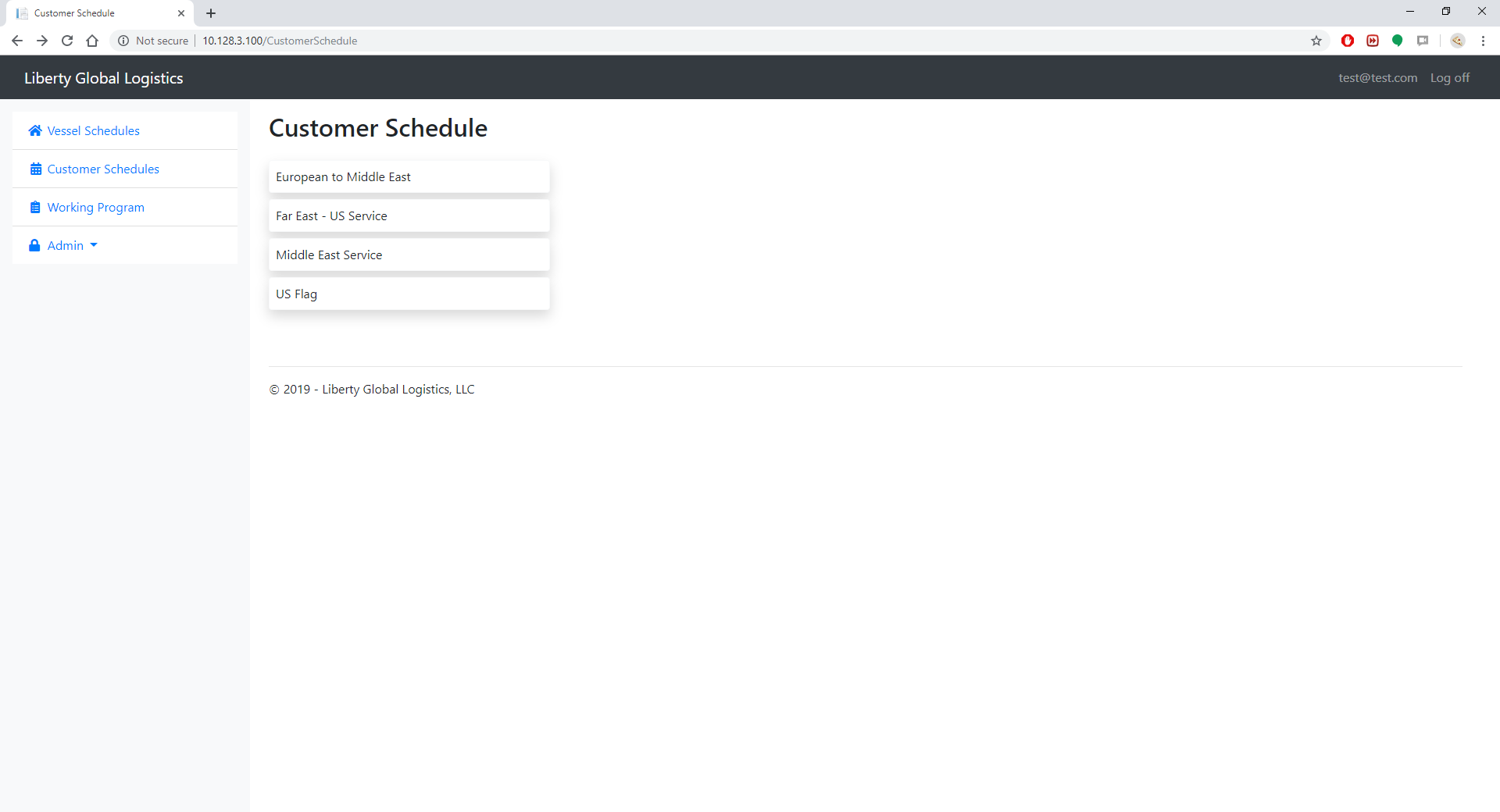
Contains all of the customer facing schedules. The dates in these schedules are the dates that will be represented on the LGL website. There is a list of customer schedules for each customer schedule template that is created in the admin section.
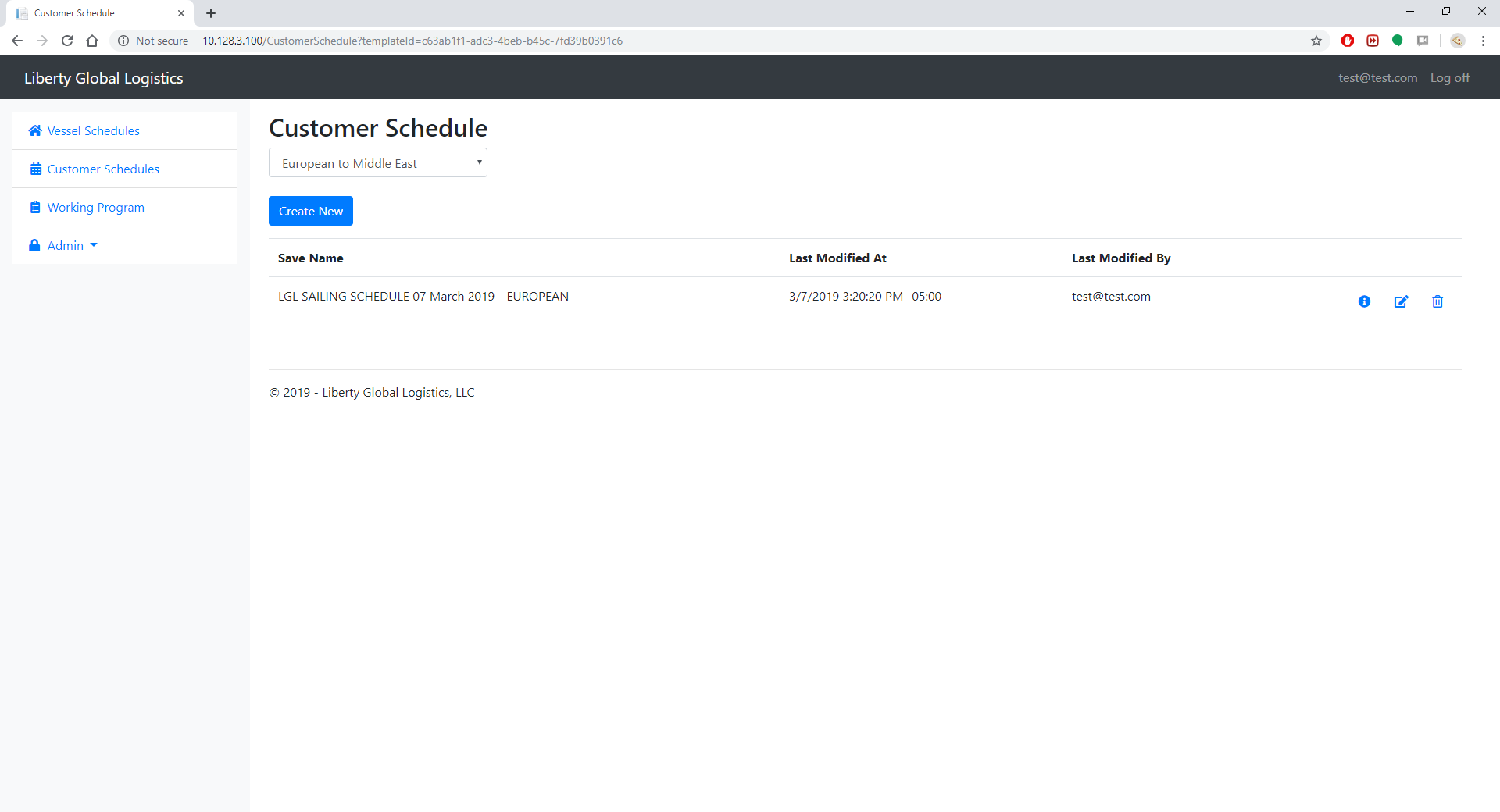
After clicking into a customer schedule template, a list of the previous schedules will be shown. The latest updated customer schedule will be the schedule that is shown on the LGL website. From this page you can either create a new schedule or edit an older version of this schedule by clicking on the edit icon.
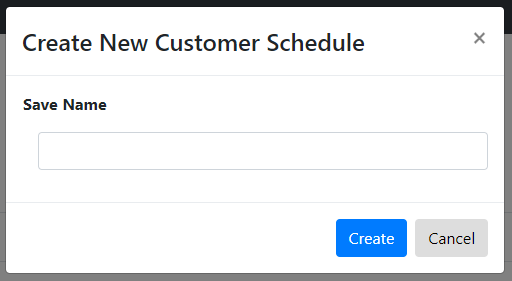
After clicking the Create New button the following popup modal will display asking for a name to identify the new schedule, this is for internal use only and will not be displayed to anyone outside of this page.
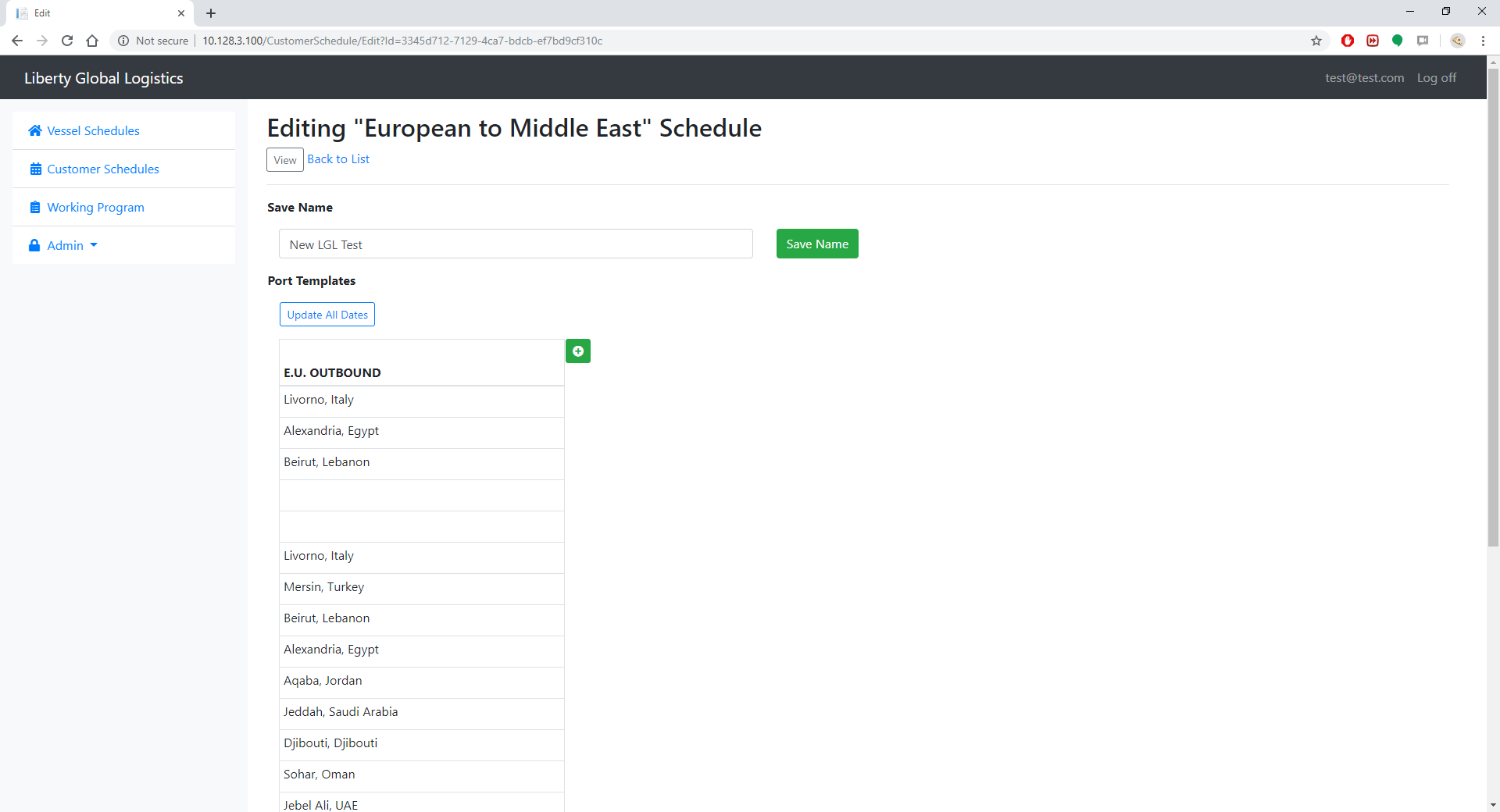
After creating a new schedule, a blank schedule template will be shown like the below picture. To add vessels to this schedule click

the green icon that looks like this.
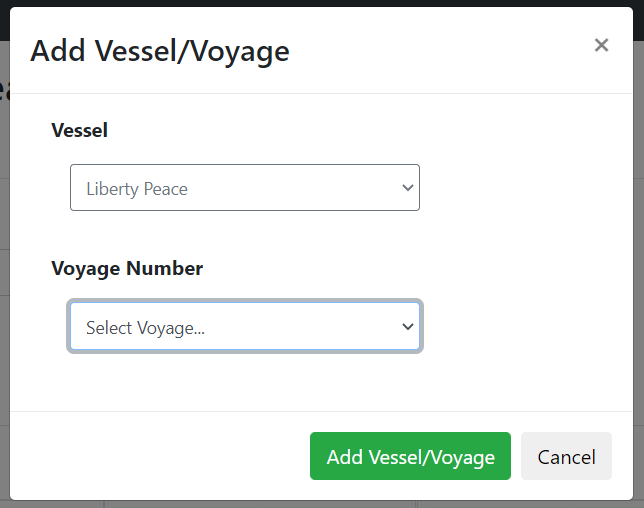
After clicking the icon the below popup with be displayed. Choose the vessel and voyage to be added to the vessel, then click Add Vessel/Voyage button.
Once vessels have been added, they will appear in the customer schedule shown in the photo below. The dates for each port will auto-populate with the dates that match on the vessel's schedule.
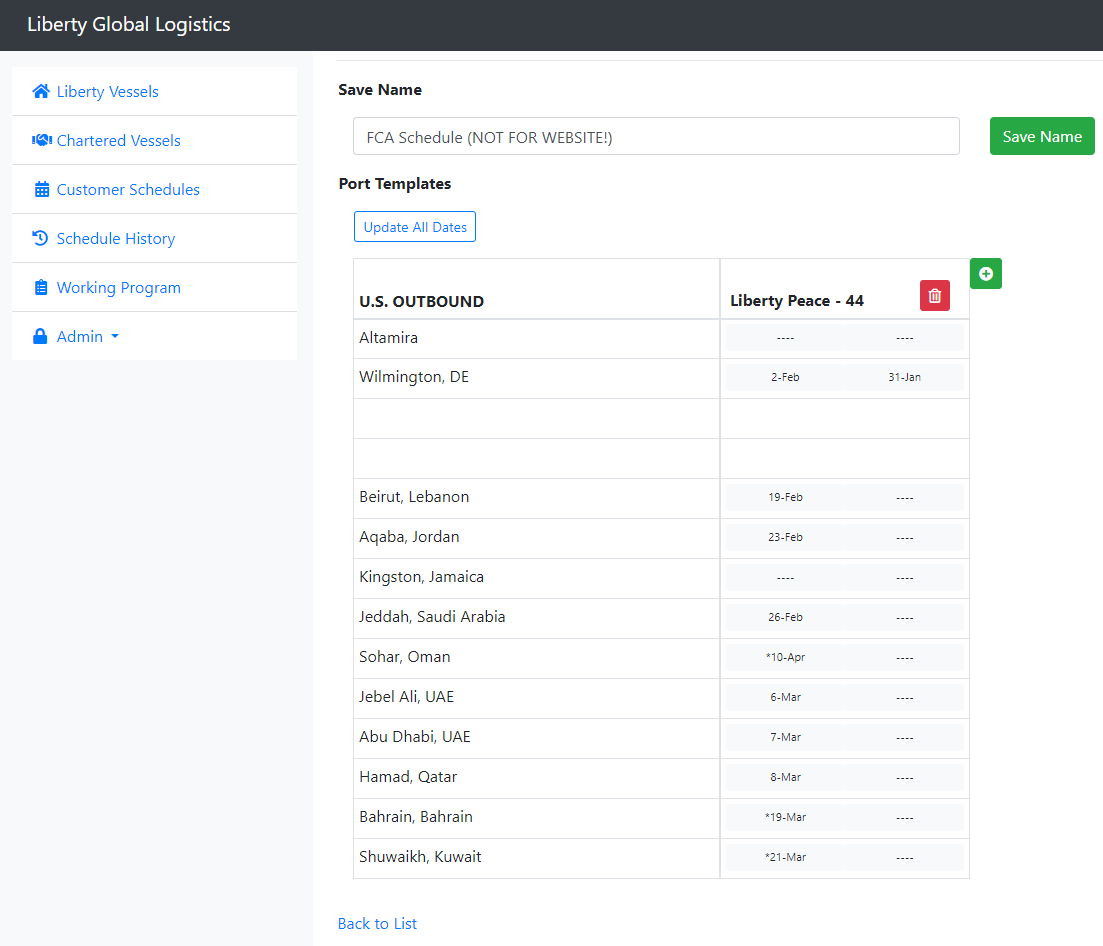
Note: If there is an asterisk (*) next to the date, this means that there is a transshipment that connects from the selected vessel to that port on a different vessel.
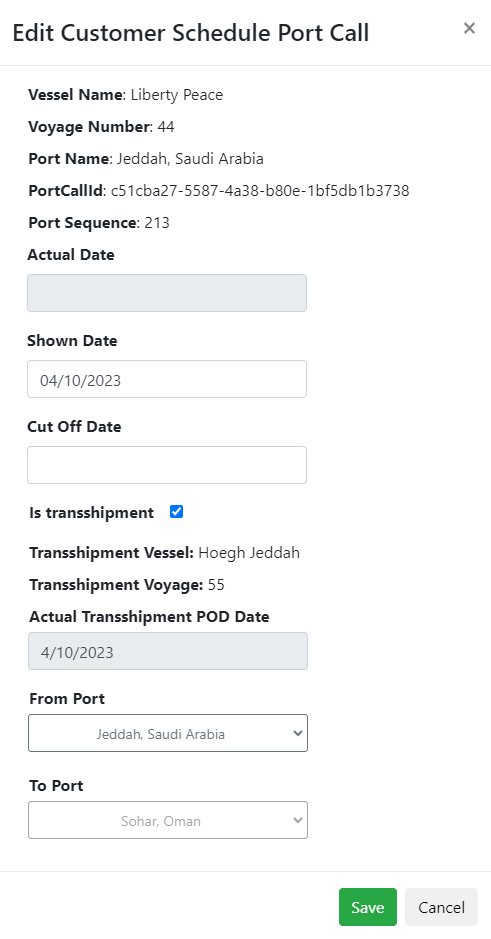
Clicking on the corresponding date in the row of the port and column of the vessel that you would like to view will display a popup as shown below.
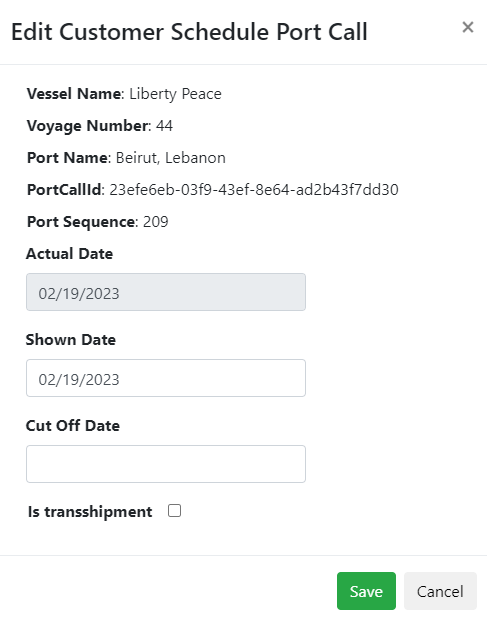
The Actual Date represents the date that is currently shown on the vessel’s schedule, The Shown Date is the date that will be shown on this schedule.
If the port call should be a transshipment you may click the ‘Is Transshipment’ checkbox and will allow to select the ‘From Port’, which will then calculate the transshipment date from the Transshipment Library or you could manually update the shown date, as shown below. If the port call selected is already a transshipment (symbolized by the asterisk next to the date), then the ‘Is Transshipment’ checkbox will already be checked and the other data will be auto-populated.
If the ‘Actual Date’ and ‘Shown Date’ dates are different for any reason, whether that be through manually updating a customer schedule port call or through the vessel's schedule changing, flags will appear on the date for the port that has the mismatching dates.
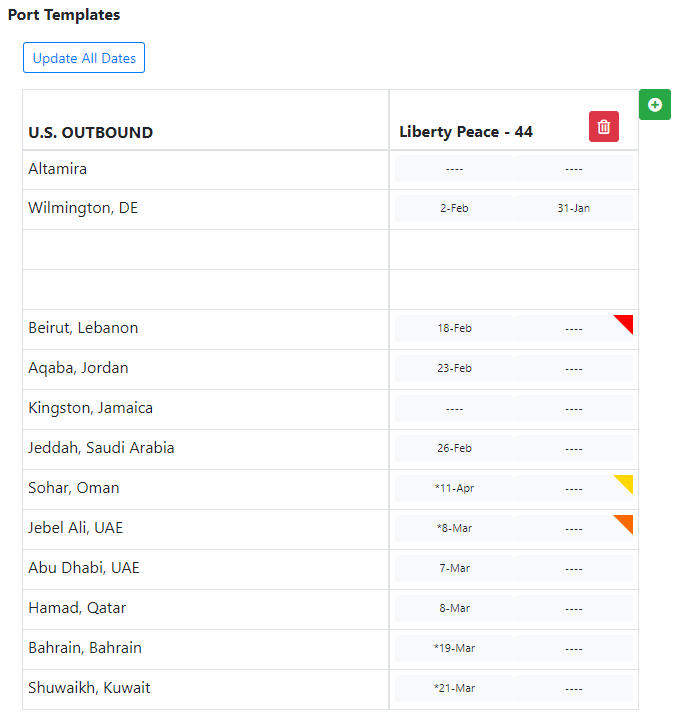
There are 3 different color flags that represent different mismatches:
| Red Flag | Symbolizes that a direct port call exists in the internal schedule, but the customer schedule is displaying a faked date |
| Yellow Flag | Symbolizes that a transshipment exists in the internal schedule, but the customer schedule is displaying a faked date |
| Orange Flag | Symbolizes that a direct port call exists in the internal schedule, but the customer schedule is displaying a faked date transshipment |
There is an ‘Update All Dates’ button above the schedule, which when clicked, it will reset all the dates and changes of ports for all vessels and populate them with the dates that match on each vessel’s schedule.
To remove a port call that’s on the schedule simply click on that date and then delete the Shown Date and click save.