¶ Morning Meeting
¶ Non-Logged In Features
On this page, users will be able to view the most recently edited morning meeting notes for each active vessel's schedule. The user will be asked which active vessel they would like to view and after clicking the desired vessel, the user will be displayed with the most recently updated morning meeting notes for that vessel's schedule.
The user will be able to view the notes, action items and details for the port calls (by clicking the [ - ] button in the Details column) of the active vessels, but cannot edit any of the data on this page.
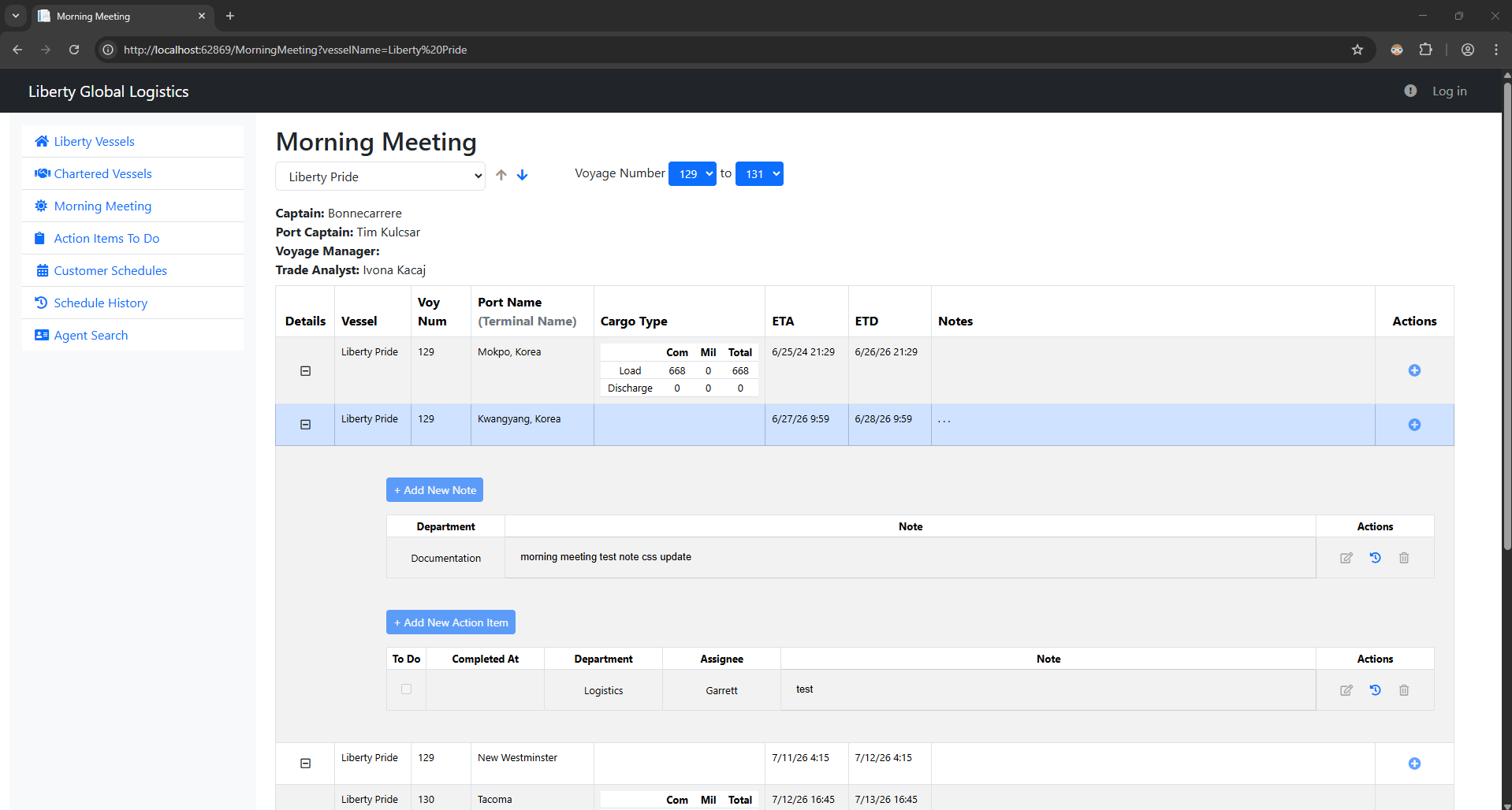
- The up and down arrows next to the vessel dropdown are used to navigate from one vessel to the next without selecting the vessel from the dropdown.
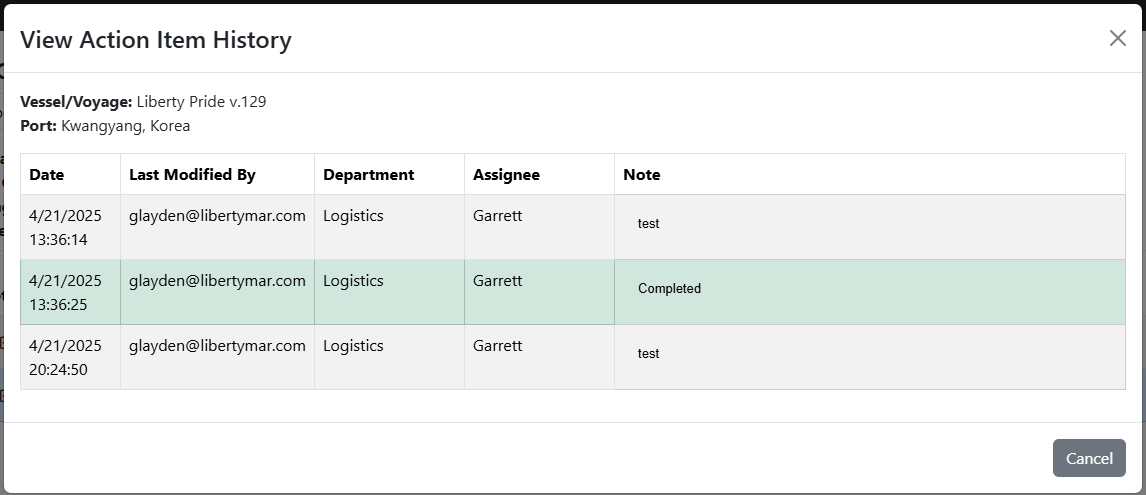
Logged out users can also view the history of morning meeting notes and action items, which shows the dates of when they were updated and the details of those items when they were updated at those dates.
¶ Logged In Features
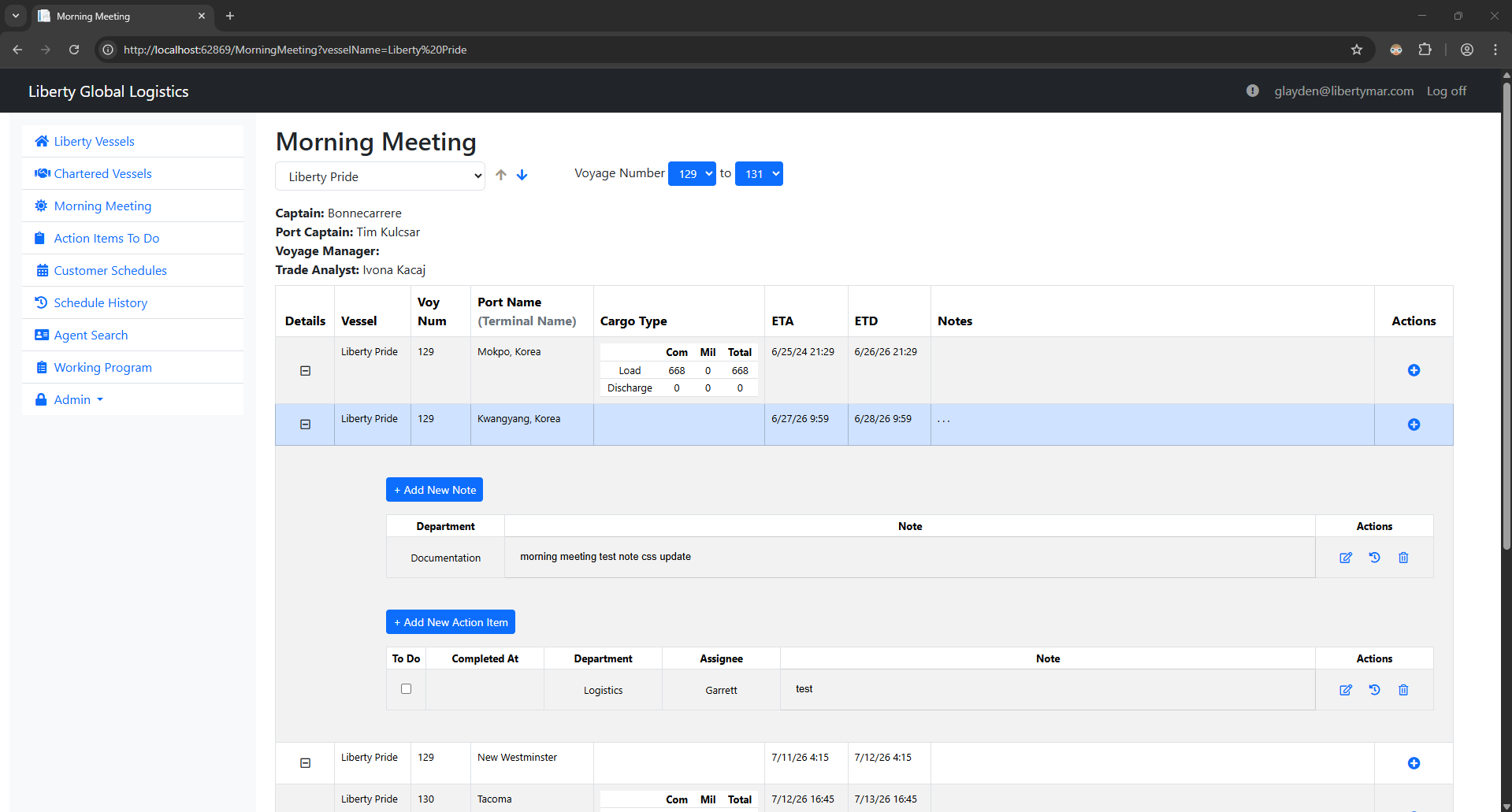
A logged in user will have all the same read functionality that a non-logged in user has and will be able to create, edit, and delete morning meeting notes and action items for a port call.
¶ Create a new Morning Meeting Note or Action Item

Clicking the button above on the table of port calls will display a modal that allows a user to create either a morning meeting note or an action item.
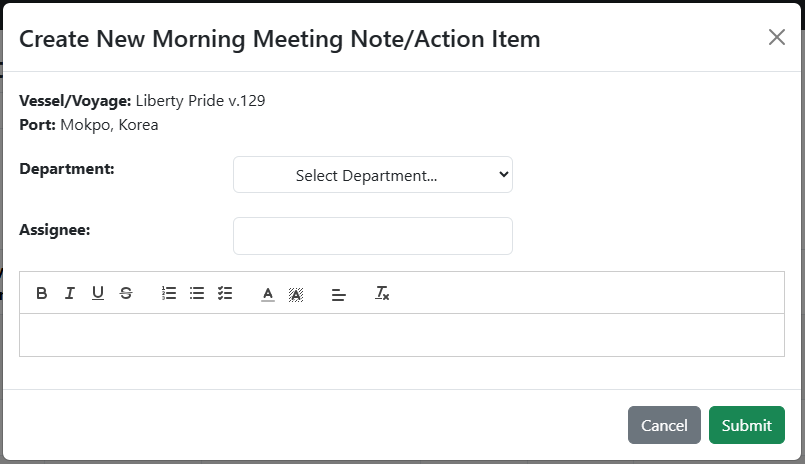
The modal displays the Vessel/Voyage and Port of the port call you're adding the item to, alongside a Department dropdown (a department is required for both morning meeting notes and action items), an Assignee field to assign a user if you are creating an action item, and an editor field where a user can write out the details of the morning meeting note or action item. The header above the editor allows the user to markdown their text.
- Note: The difference between a morning meeting note and an action item is based on the ‘Assignee’ field. If the ‘Assignee’ field is blank when the ‘Submit’ button is clicked, then it will create a Morning Meeting Note. If there an ‘Assignee’ assigned to this modal, then it will create an Action Item.
- The Assignee field is an autocomplete input, meaning that as you type in the assignee you want, a dropdown with all the names of users in the VSM will display based off of what you started typing
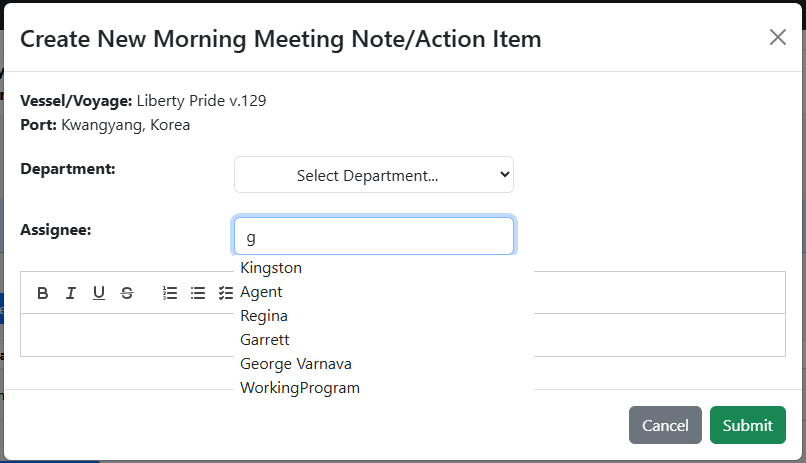
When you create your morning meeting note or action item, it will be displayed in the ‘Notes’ column in the table of port calls with the Department, text, and a symbol to represent what kind of note it is.
 |
Symbolizes a morning meeting note |
 |
Symbolizes an action item |
¶ Morning Meeting Port Call Details

Clicking on the button above will expand the port call row and display the ‘Notes’ section in greater detail
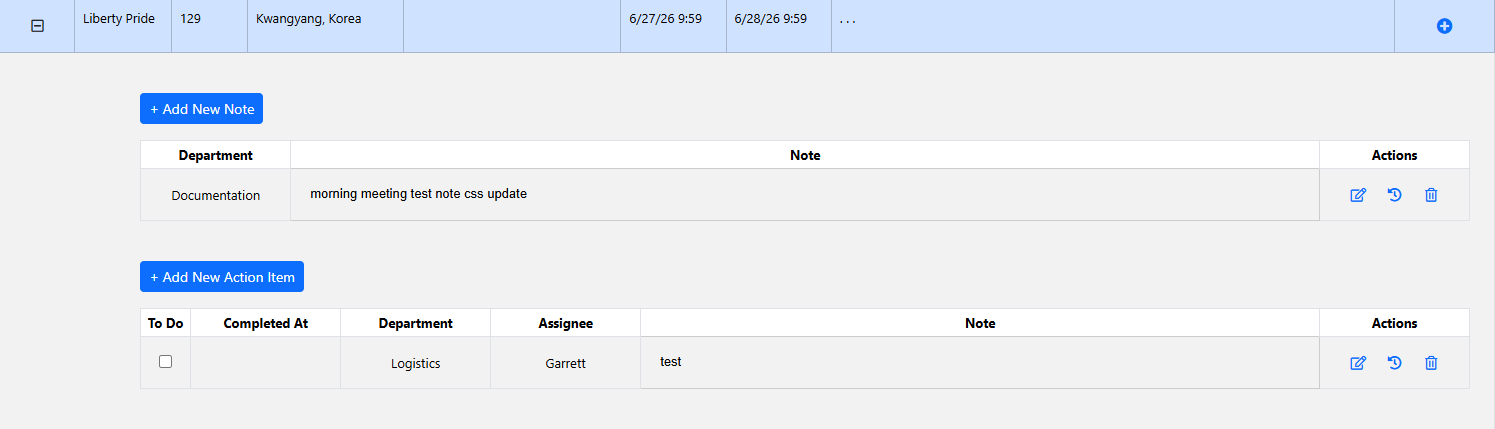
First, it displays a table of morning meeting notes, and then it displays a table of action items. You can also click the buttons above each table to create a Morning Meeting Note or Action Item respectively.
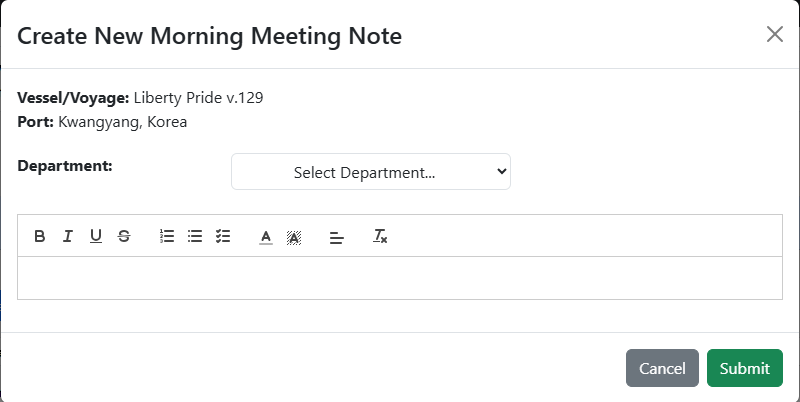
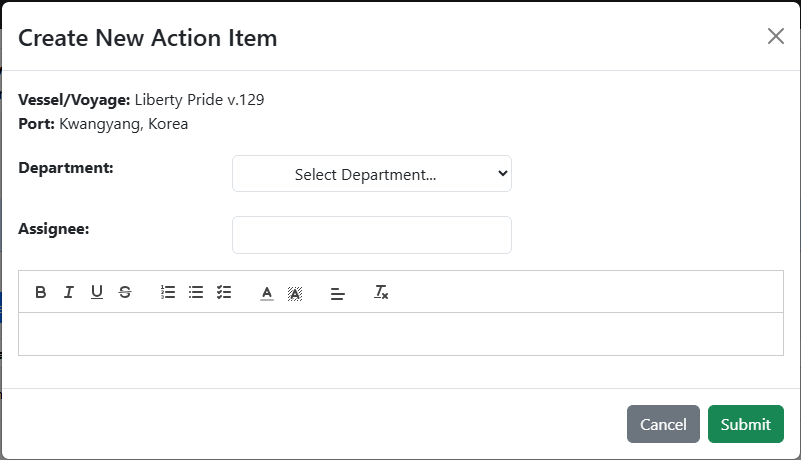
When you click either of those buttons, the modals displayed are specific to which item you are creating.
- Create Morning Meeting Note modal (no assignee field displayed):
- Create Action Item modal (assignee is now a required field):
For Action Items specifically, there is a ‘To Do’ checkbox that when clicked, completes the Action Item, populating the ‘Completed At’ column with the current date and changing the color of the Action Item row to green.
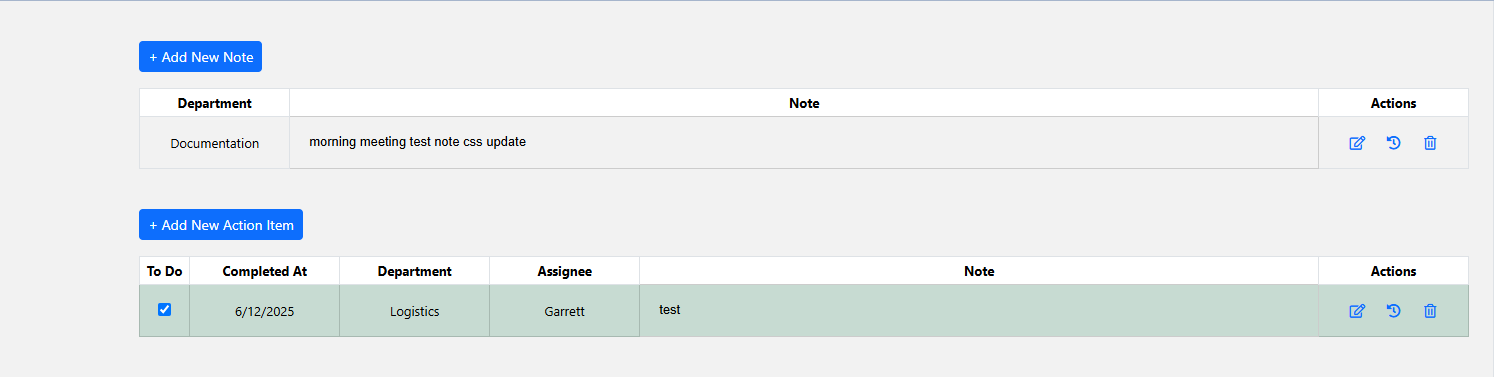
Additionally, both morning meeting notes and action items have actions attached to each item
 |
Edit morning meeting note/action item |
 |
View history of morning meeting note/action item (example modal shown in Non-Logged In Features section) |
 |
Delete morning meeting note/action item |
¶ Edit Morning Meeting Note or Action Item
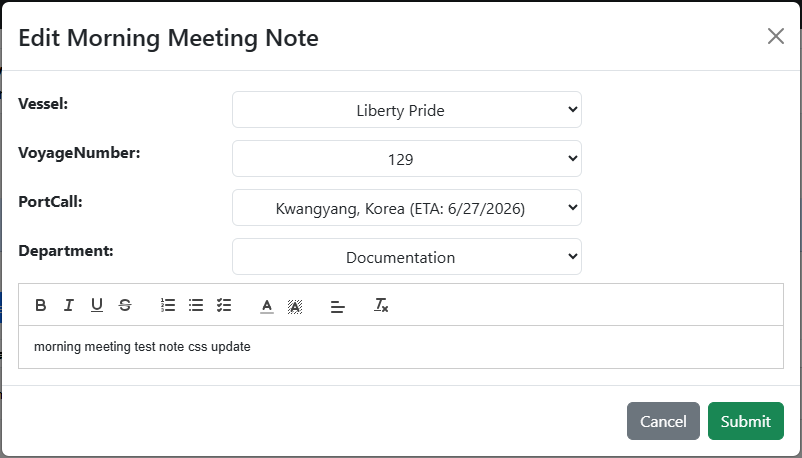
Clicking the Edit button will display a modal to edit the selected morning meeting note or action item
- Edit Morning Meeting Note
- Edit Action Item
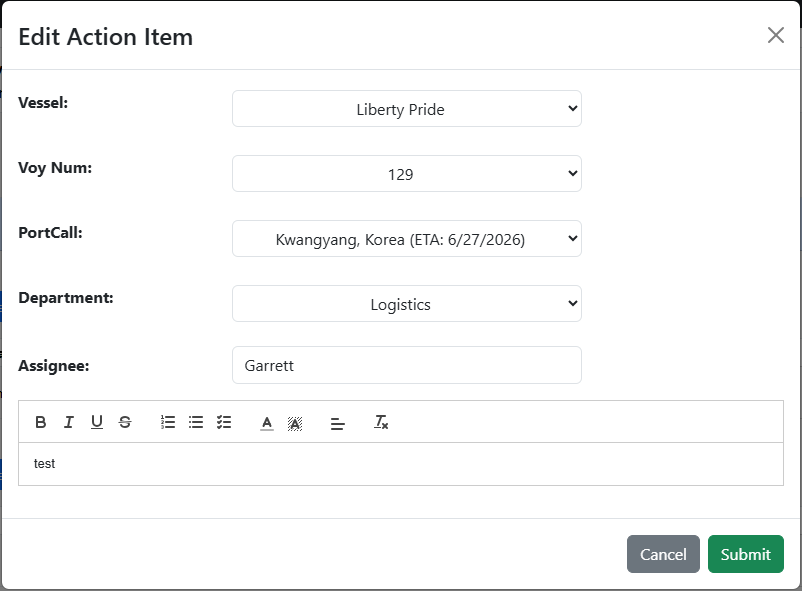
On top of editing the department, assignee (for action items), and details of the morning meeting note/action item, you can also use the Vessel, Voyage, and PortCall dropdowns to move the note to a different port call.
¶ Delete Morning Meeting Note or Action Item
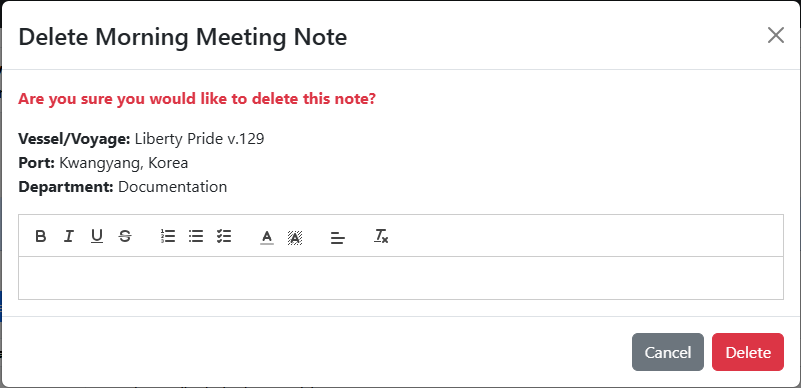
Clicking the Delete button will display a modal to delete the selected morning meeting note or action item
- Delete Morning Meeting Note
- Delete Action Item
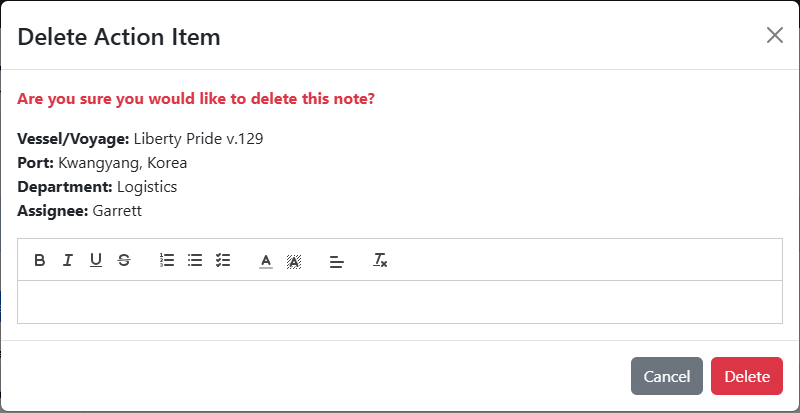
The modal displays the info related to the morning meeting note/action item you are deleting, as well as a text box that allows a user to write a reason on why they are deleting the morning meeting note/action item.
- Note: Currently, there is no way of viewing the reason for deleting a morning meeting note or action item
¶ Settings
If you have admin access, there will be a small gear on the top right when you first click into the Morning Meeting module
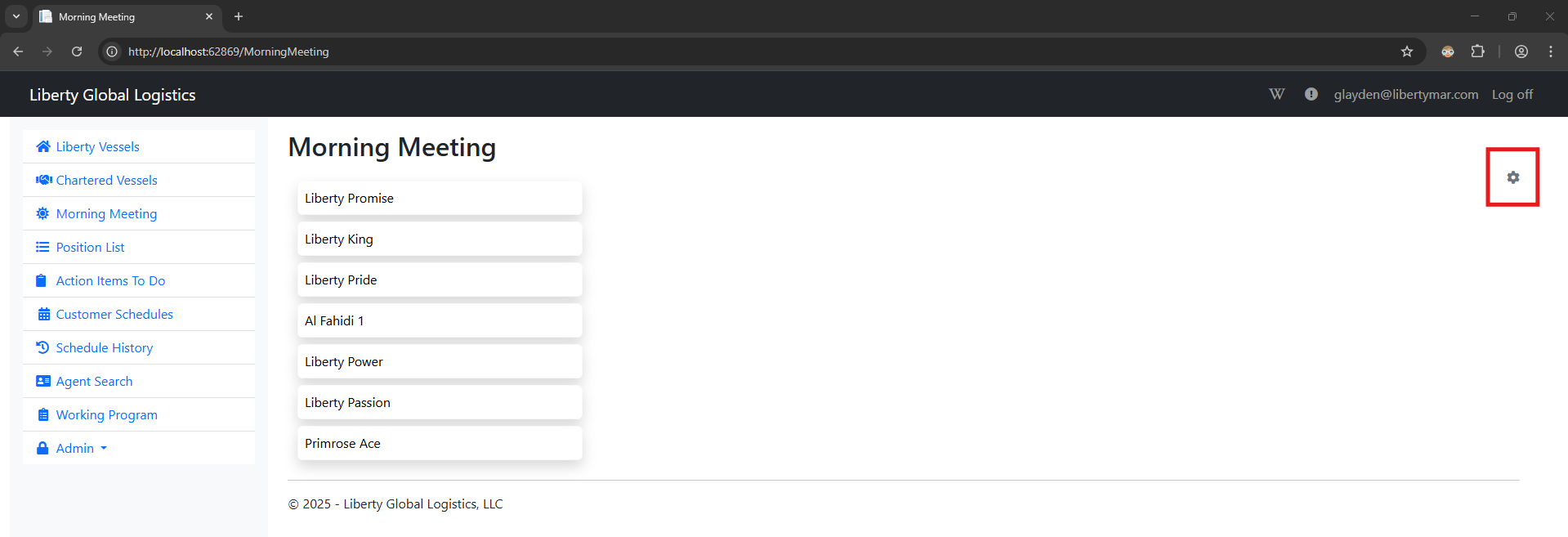
Clicking it will navigate you to the Morning Meeting Settings page
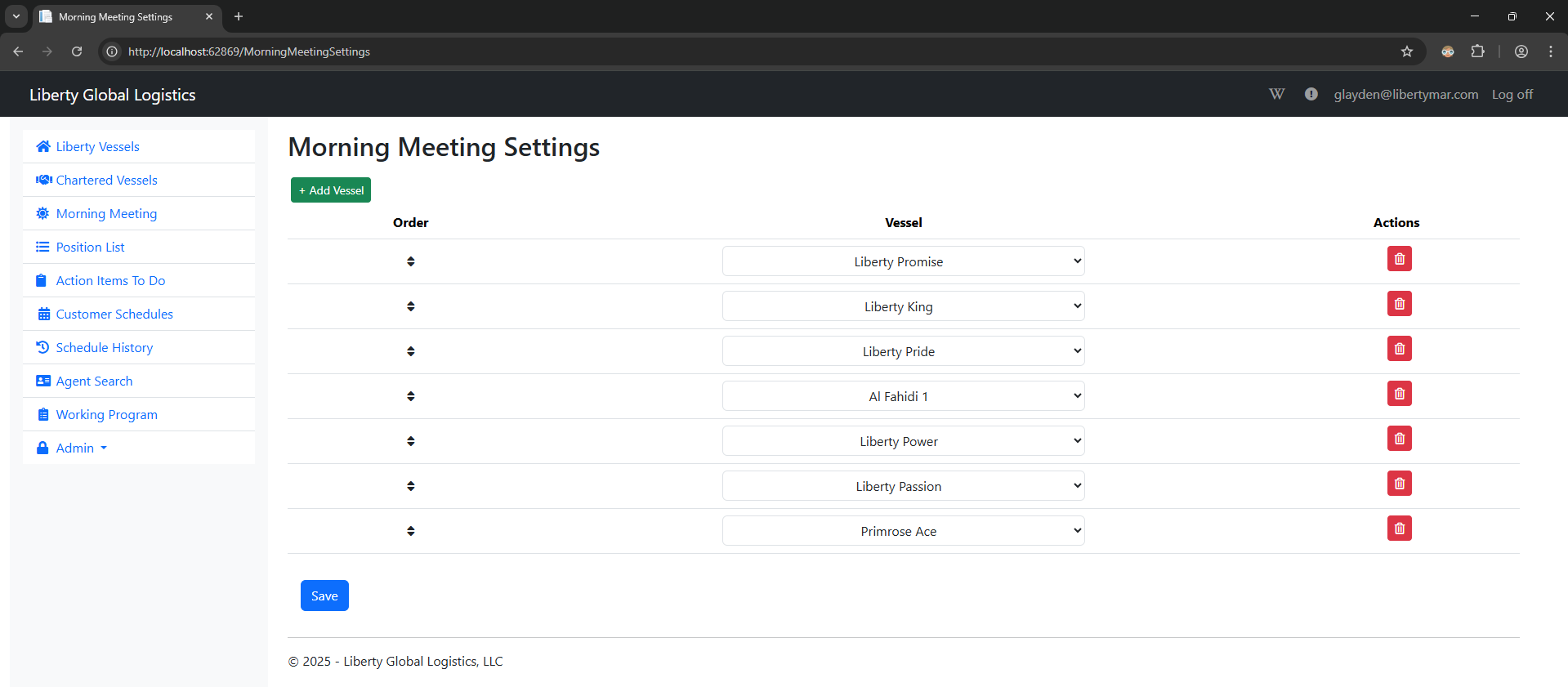
On this page, you'll be able to add, edit, re-order, and/or delete any active vessels to be displayed for the Morning Meeting module