¶ Schedule History
¶ Features
On this page, the user will be able to search for the specific schedule that they would like to view.
With the exception of the Vessel field, which is a required field, the other fields shown are used to help narrow down your search for which schedule transaction you would like to view.
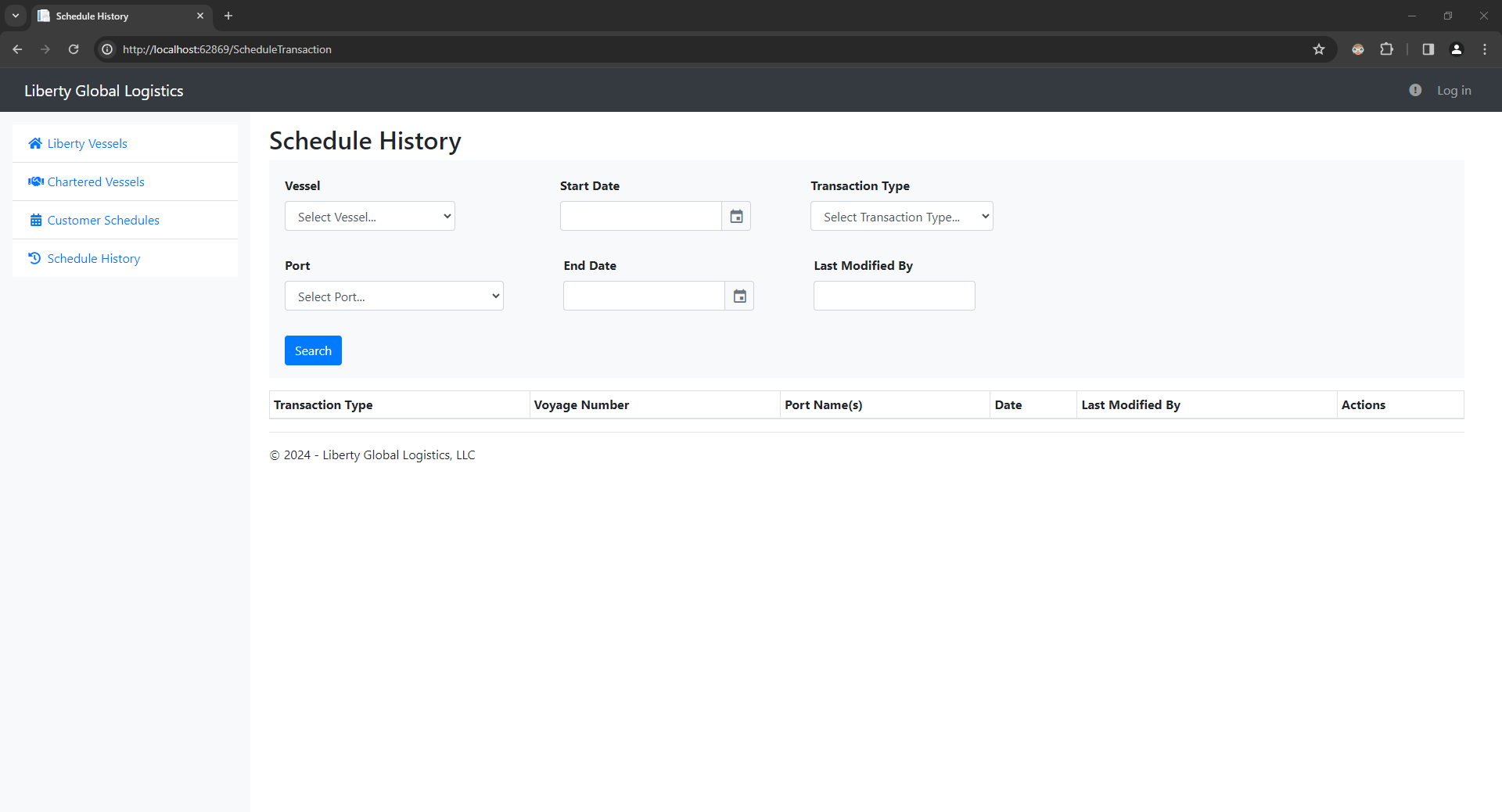
Once you input your desired fields and click on ‘Search’, a table of schedule transactions will appear.
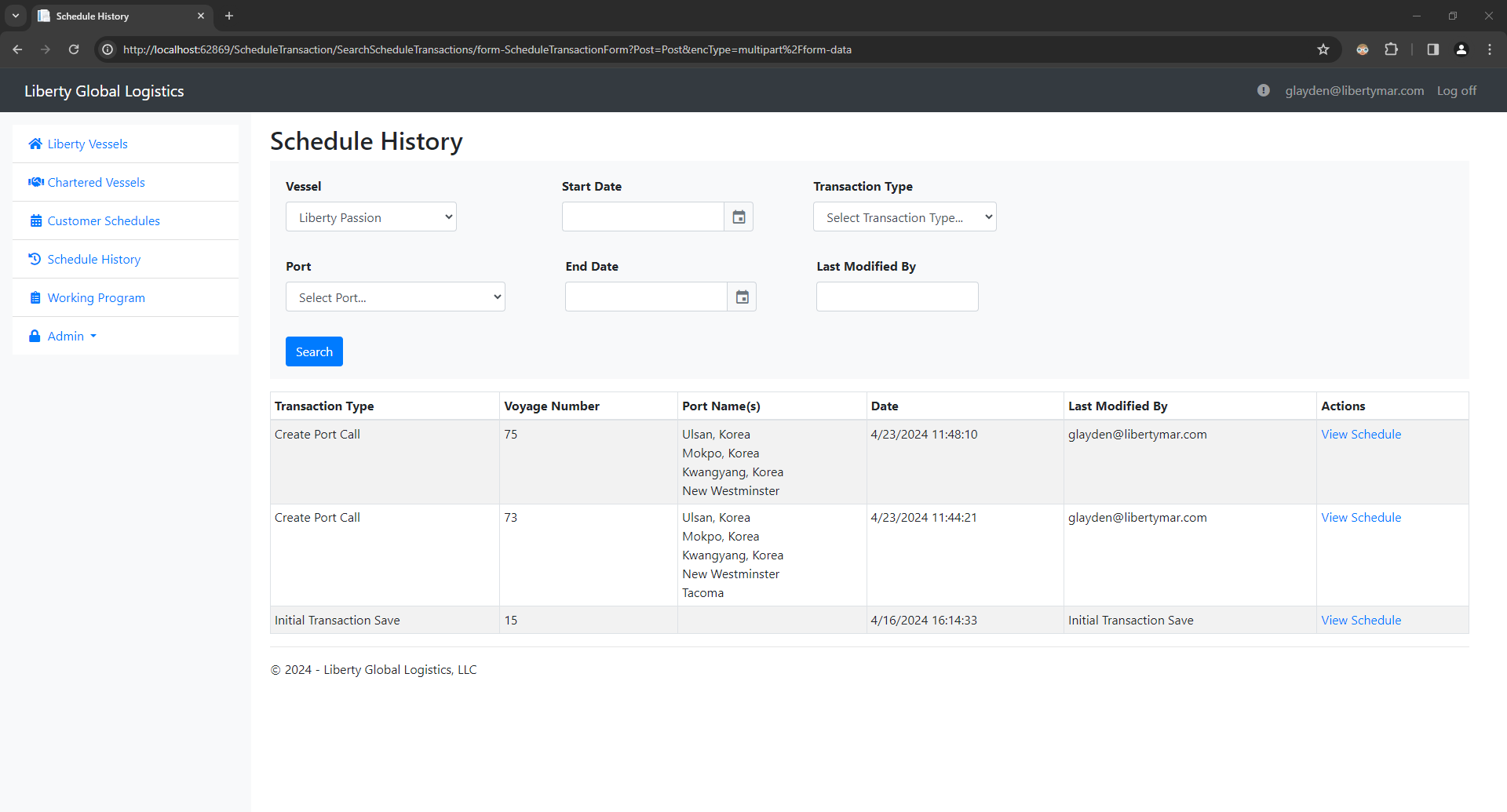
This table displays information for each schedule transaction. At the end of the table, there is an ‘Actions’ column that holds a ‘View Schedule link that when clicked, the link will redirect you to that transaction’s schedule.
| Transaction Type | The type of transaction that was last performed on the schedule |
| Voyage Number | Voyage number of the vessel where the port call was affected |
| Port Name(s) | Names of the ports that were affected by the transaction last performed |
| Date | Date and time of when the schedule was changed |
| Last Modified By | User that changed the schedule |
The table below describes the different transaction types that currently exist.
| Create Port Call | Port call(s) were created |
| Edit Port Call Details | Port call(s) were edited |
| Delete Port Call | Port Call(s) were deleted |
| Create Transshipment Link | A transshipment link was created |
| Delete Transshipment Link | A transshipment link was deleted |
| Initial Transaction Save | The first time a scheduled is saved (This transaction type only occurs when this enhancement was deployed) |
After clicking on the ‘View Schedule’ link for your desired schedule transaction, you will be directed to that transaction's schedule as shown below.
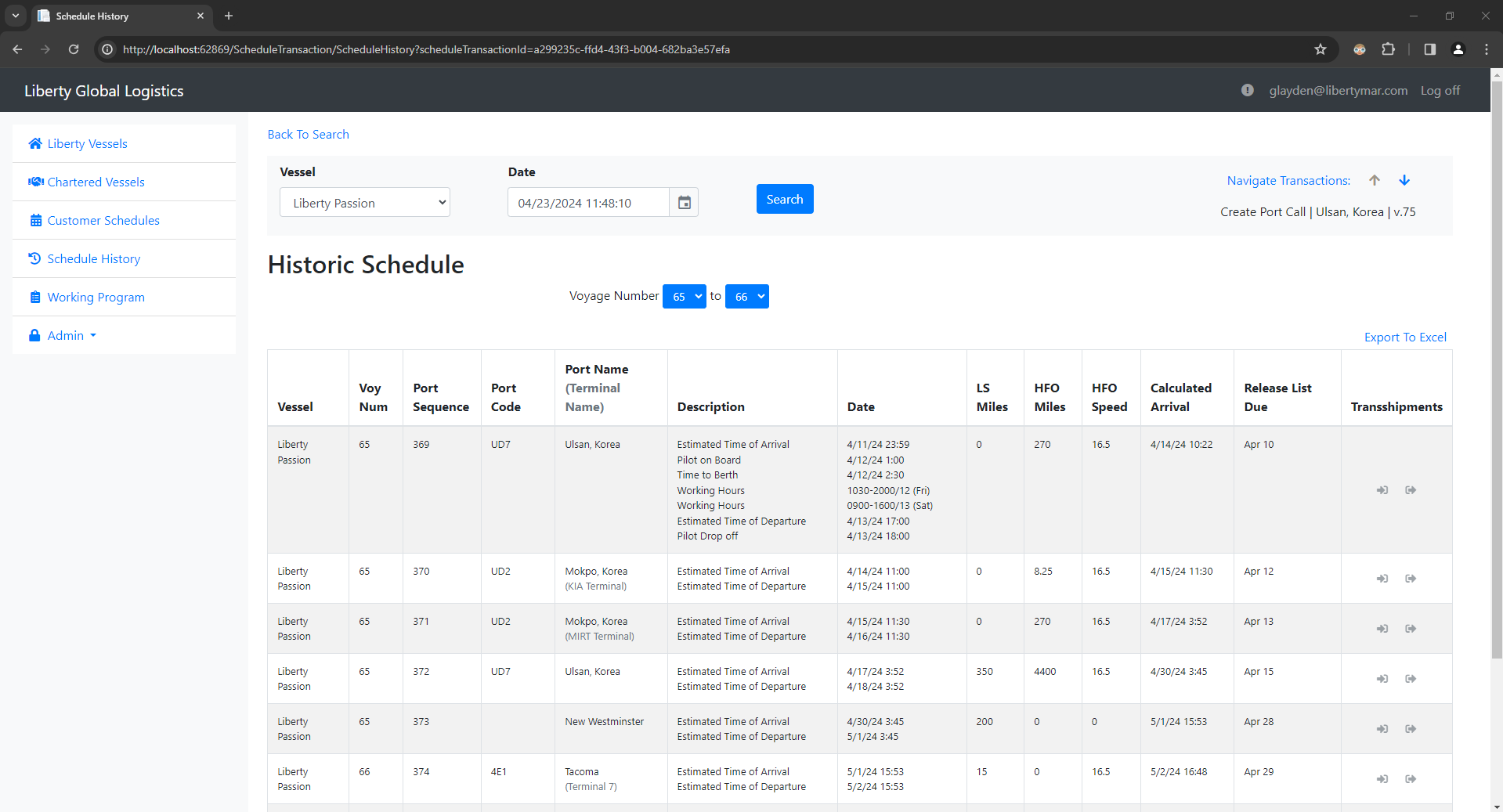
When the page loads, you will see the schedule displayed very similarly to how the internal schedule looks like. On the top of the page, there is a ‘Back To Search’ link that will direct you to the first page, where you can go back and search for other schedule transactions. Additionally, there is also a nav bar above the schedule, whose functionality can be divided into two sections:

This section is used to search for schedules based off of the vessel and date that you would like to search for. After inputting your vessel and date fields and clicking on ‘Search’, you will be directed to the page that displays that vessel's schedule at the inputted date and time.
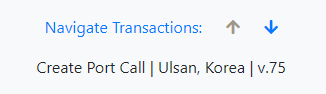
This section is used to navigate to the next schedule transaction or previous schedule transaction from the current schedule transaction you're viewing. It also displays the transaction type, first port affected, and voyage number of the vessel of the current schedule transaction.
 |
When clicked, it directs you to the schedule transaction created after the current one you're viewing (the next schedule transaction created) |
 |
When clicked, it directs you to the schedule transaction created before the current one you're viewing (the previous schedule transaction created) |
*Note that if there are no schedule transactions before or after the current one you're viewing, the respective button will be disabled. Using the image above as an example, there are transactions created before the current schedule transaction that I'm viewing, but there are no transaction created after this schedule transaction.
Underneath the nav bar is the schedule that displays and functions just like the internal schedule with non-logged in features, meaning that the schedule cannot be edited, but can still be exported to excel or copy and paste the information directly from the page to more easily utilize the data.
For Chartered Vessels, instead of a voyage number range, there will be a single dropdown for the voyage number and a disabled dropdown displaying the voyage type, which is how it is displayed for chartered vessels in the internal schedule.
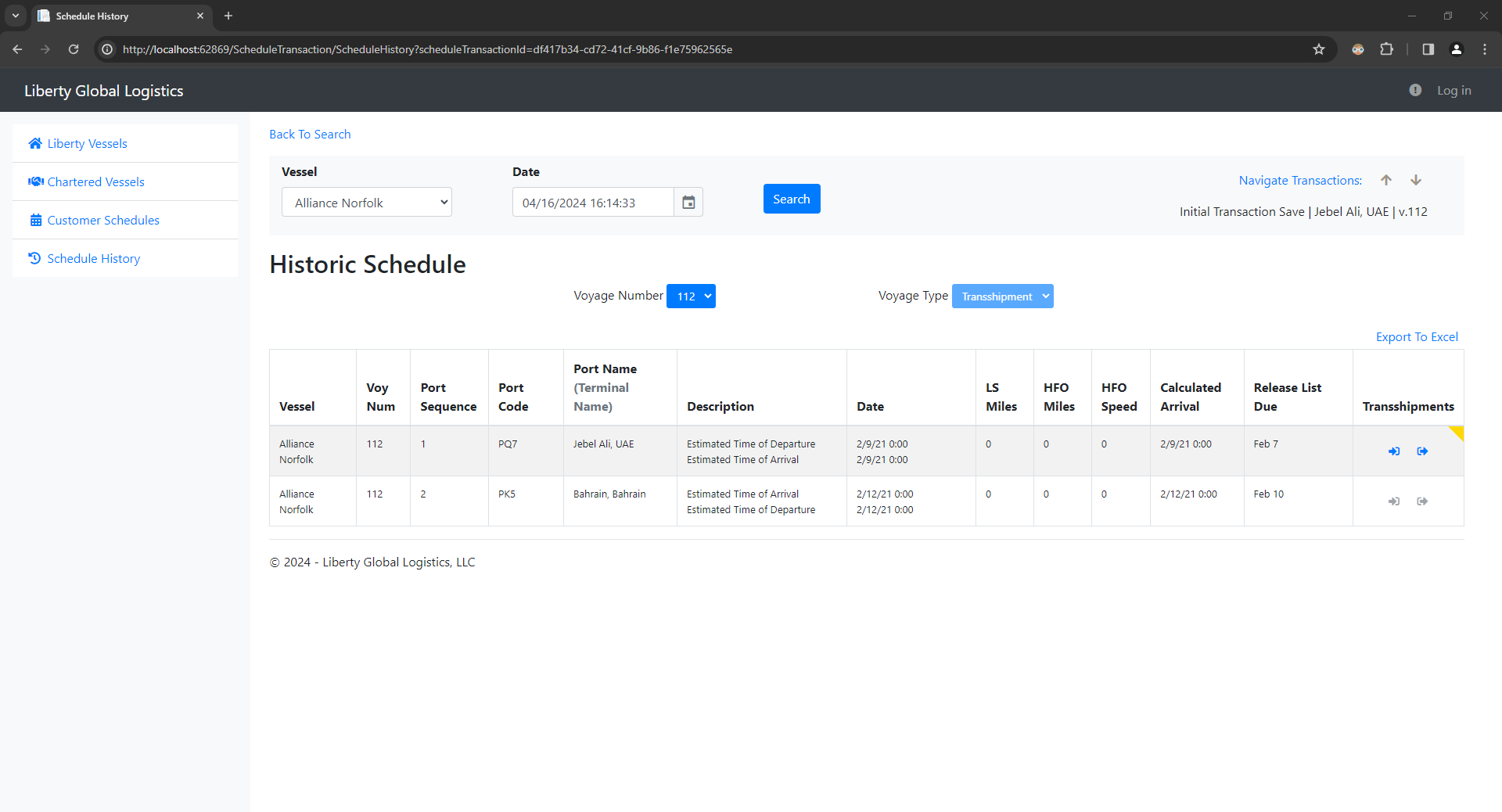
The Transshipments column contains two buttons to view transshipment links that either link from another vessel to the current vessel, or from the current vessel to another vessel. If there are transshipment links present for that port call, there will also be a yellow flag to indicate that transshipment links exist. When you hover over the cell block, you will see all the transshipment links that exist for that port call.
 |
When clicked, pops up the modal to view transshipment links coming from another vessel |
 |
When clicked, pops up the modal to view transshipment links going to another vessel |
*Note that if there are no transshipment links for a port call, these buttons will be disabled.
¶ Popup Modals
The below sections will go into more detail of each popup modal that will be displayed in the vessel schedule page.
- Transshipment Link Modal
¶ Transshipment Link Modal
This modal shows details of each transshipment link that exist in the selected direction. The last column ‘View Schedule’ holds a link ‘View Historic Schedule’ that when clicked, it will direct you to the other vessel's schedule when the transshipment link was created.
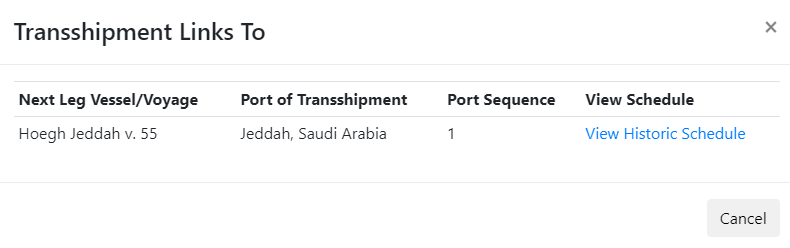
| Next Leg Vessel/Voyage (Previous Leg Vessel/Voyage) | Displays the vessel/voyage of where the transshipment is going to (Displays the vessel/voyage of where the transshipment is coming from) |
| Port of Transshipment | Displays the port where the transshipment is occurring |
| Port Sequence | Displays the port sequence of the other vessel/voyage where the transshipment occurs |
*'Next Leg Vessel/Voyage' and 'Previous Leg Vessel/Voyage' will interchange between whether you're viewing transshipment links to another vessel or transshipment links from another vessel.