¶ Mafi Inventory
¶ Features
On this page, users with Admin or Mafi roles can create/edit mafis and/or mafi status transactions and all their respective details, such as ownership details for mafis or current status/location for mafi status transactions.
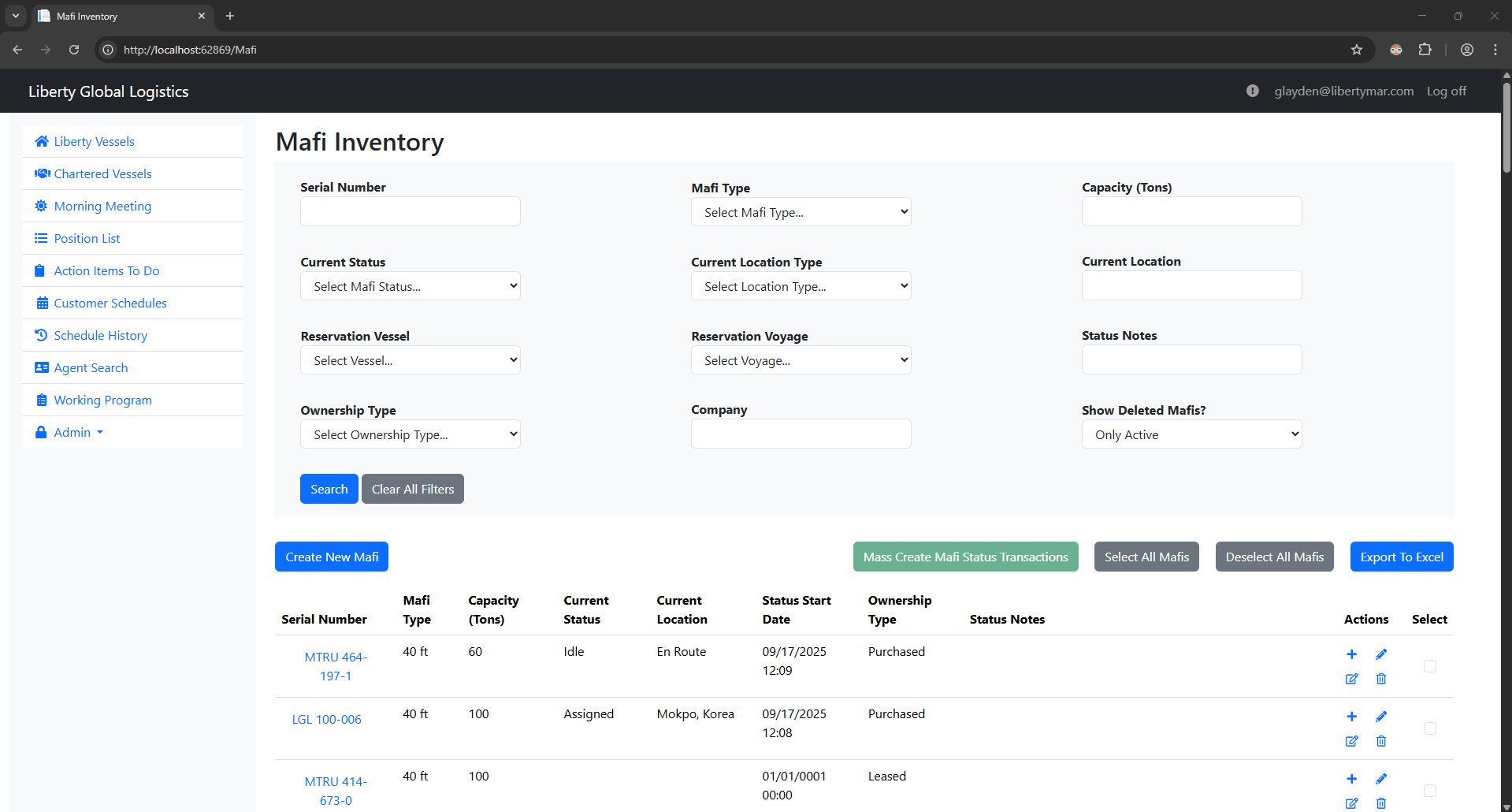
The first section is comprised of search filters, where users can input any filters they want to search for desired mafis.
In the table of mafis, the serial number is a link where the user can view all mafi details, including ownership details and previous status transactions.
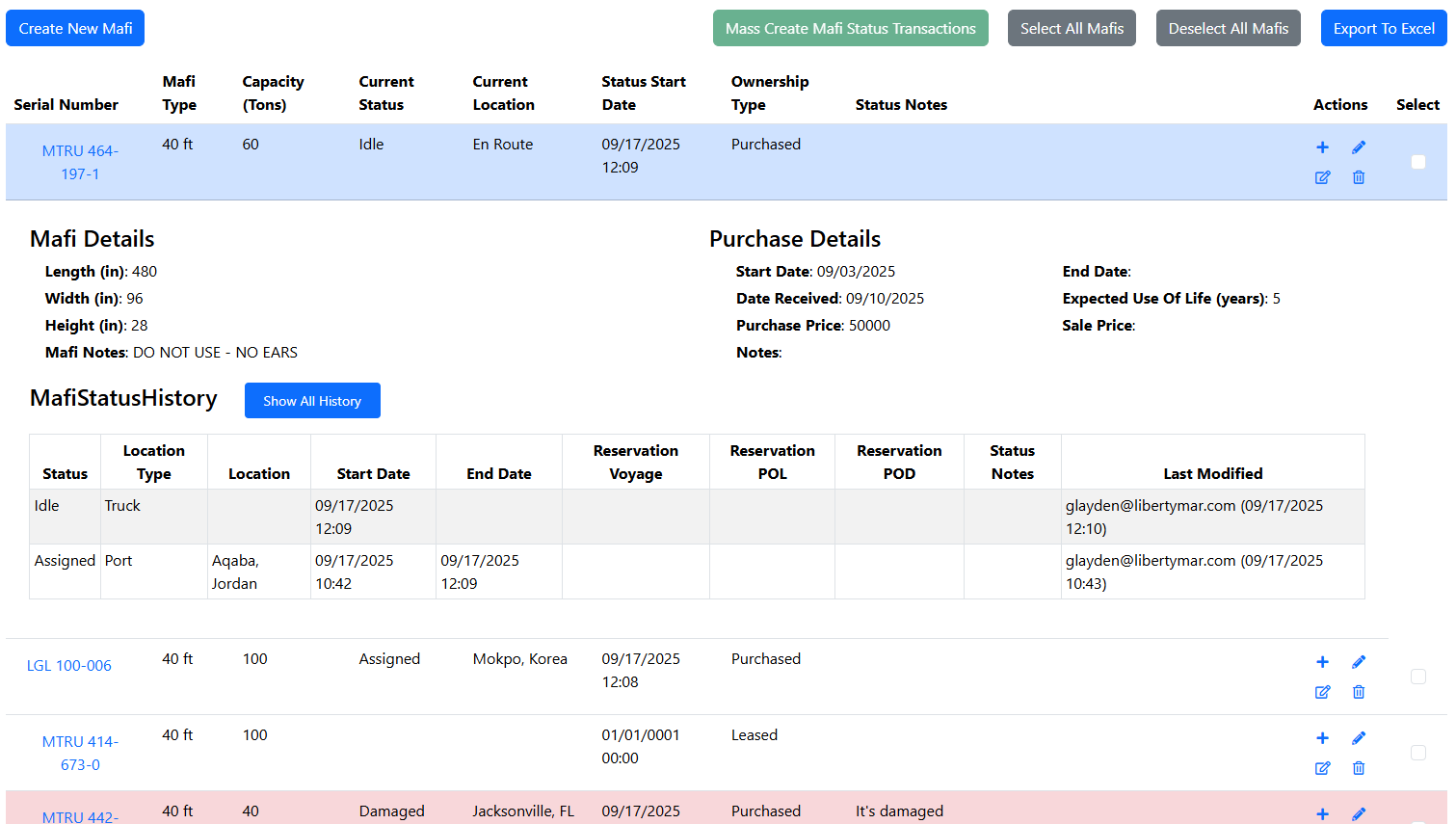
- Note: The Mafi Status History table displays the last 3 status transactions for that mafi. If the user wants to view more status transactions, they can click on the ‘Show All History’ button, which will display a modal with all mafi status transactions for that mafi.
Actions for each mafi in mafi table:
 |
Create a new mafi status transaction |
 |
Edit the current mafi status transaction |
 |
Edit mafi |
 |
Delete mafi |
¶ Create a Mafi
Clicking the ‘Create Mafi’ button will display a modal that allows the user to create a mafi.
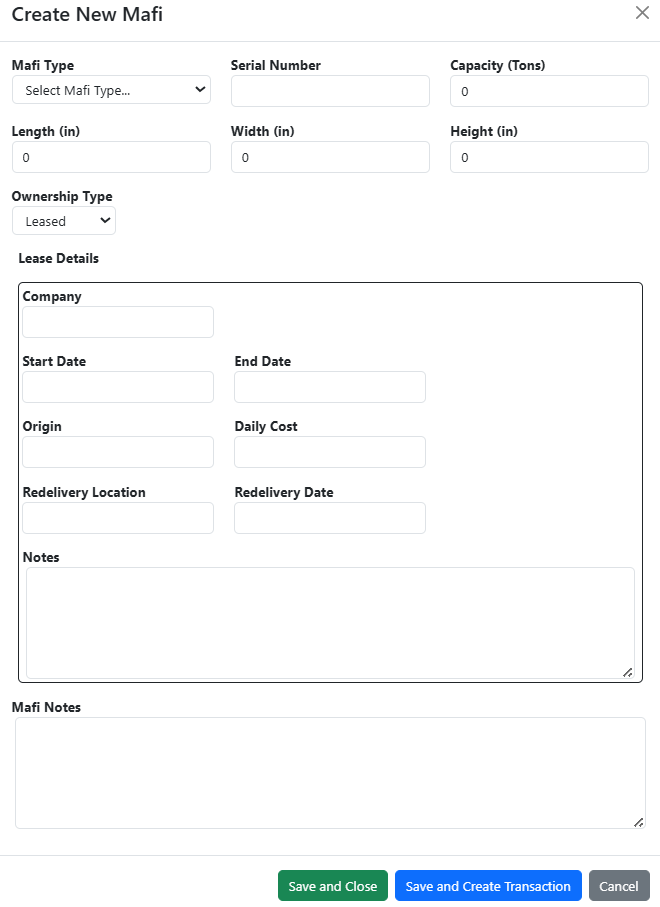
- Note: When you change the Ownership Details dropdown, the Details section will also change to display the input fields respective to their ownership details.
Users can create this mafi by clicking either ‘Save and Close’ or ‘Save and Create Transaction’. If the user clicks ‘Save and Close’ the create modal will disappear and the page will reload, displaying the new mafi in the mafi table. If the user clicks ‘Save and Create Transaction’, the create mafi modal will disappear and the create mafi status transaction modal will appear (See Create Mafi Status Transaction section for more details).
¶ Edit Mafi
Clicking the edit mafi action will display the edit mafi modal.
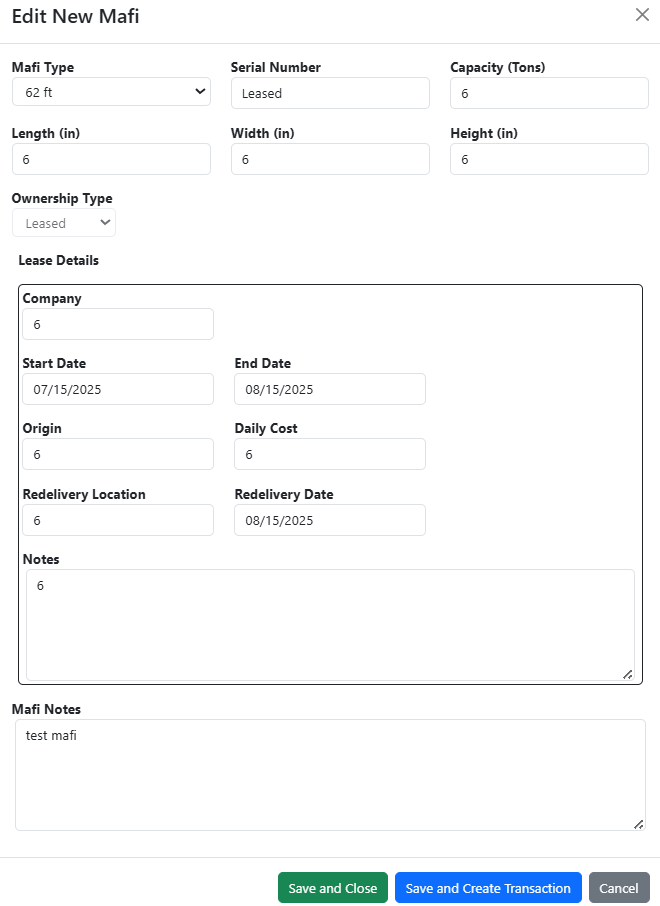
The user can edit all mafi details and ownership details except for the ownership type. If you want to change the ownership type for this mafi, the user must create a new mafi with the same serial number and the new ownership type.
¶ Create Mafi Status Transaction
Either clicking the 'Create Mafi Status Transaction' action or creating a transaction from the create/edit mafi modal will display the create mafi status transaction modal.
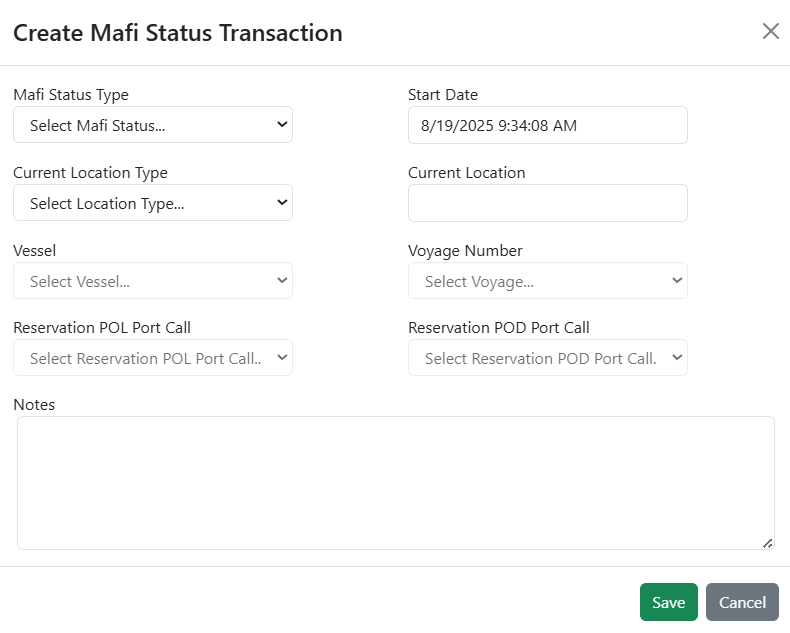
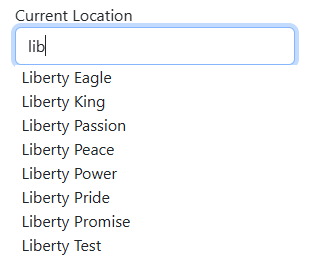
- Note: The Current Location field (changes to Destination Location if the Current Location Type is updated to ‘Truck’) is an autocomplete field, where as the user keeps typing, a dropdown of vessels and ports will appear that matches what the user is typing.
If the mafi status type is updated to ‘Assigned’ or ‘Positioning’, the Vessel dropdown will be enabled, which will allow the user to choose the reservation port calls for this status transaction.
- Note: Reservation port calls are required for the ‘Assigned’ status, but not for the ‘Positioning’ status.
¶ Edit Current Mafi Status Transaction
Clicking the ‘Edit Current Mafi Status Transaction’ action will display a modal with the inputs populated with the current mafi status transaction details.
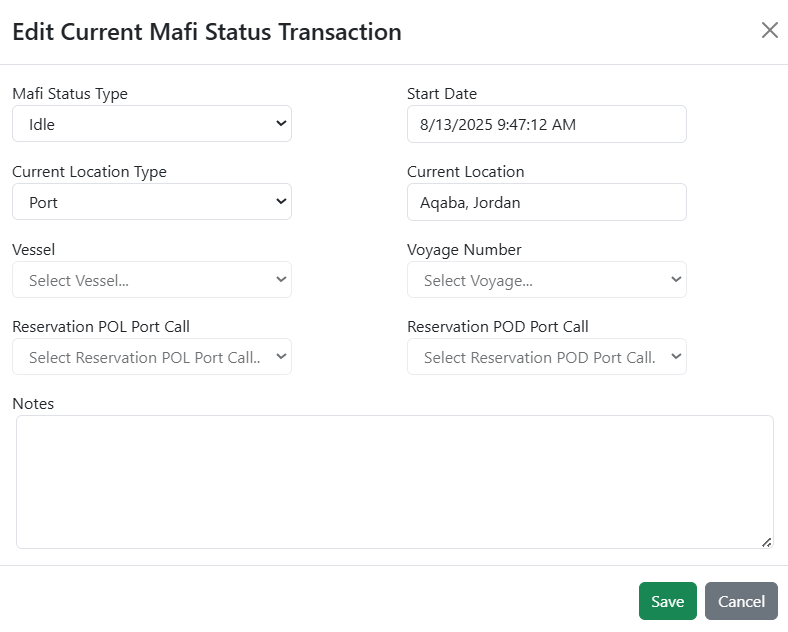
All fields can be edited, and when saved, only the current mafi status transaction will be updated.
¶ Mass Create Mafi Status Transaction
After selecting the mafis the user wants to create a status transaction for (either by checking the checkbox in the ‘Select column of the mafi table or by clicking the ’Select All Mafis' button), the user can then click the ‘Mass Create Mafi Status Transactions’ button to display a modal for a user to mass create mafi status transactions for all the selected mafis.
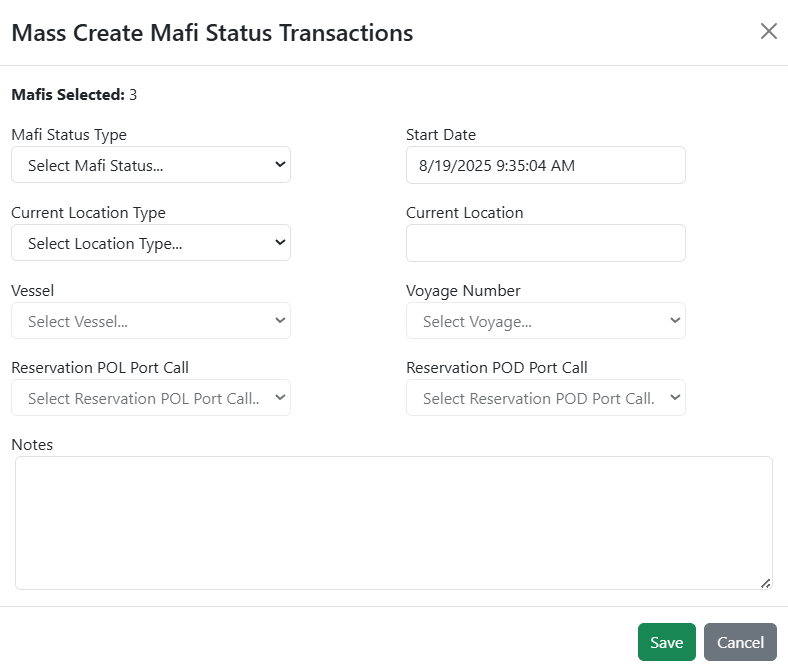
- Note: The number of mafis selected is displayed at the top of the modal
¶ Delete Mafi
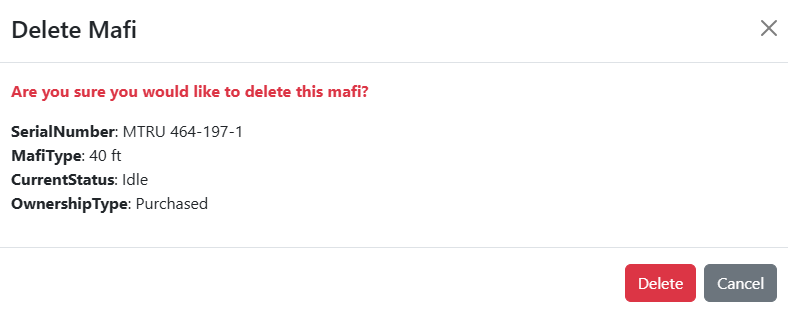
Clicking the ‘Delete Mafi’ action will display a modal that confirms the deletion of the selected mafi.